Section Templates Gallery
The AI HTML Widget comes with a growing library of ready-made section templates you can add to your BigCommerce store with a single click. Pick a template, drop it onto your page, then use the AI assistant to tweak the colors, text, images, and layout until it matches your brand.
This page showcases the Form Templates and Popup Templates collections. Many more templates — hero banners, product showcases, testimonials, and more — are available inside the Browse Blocks gallery in the AI assistant.
How to Use a Template
- Add the AI HTML Widget to your page in Page Builder.
- Open the AI assistant by clicking the purple AI button.
- Click Browse Blocks below the message box.
- Filter by category — for example Form Templates or Popup Templates — or search by name.
- Click a template to preview it with Desktop, Tablet, and Mobile views.
- Click Use This Block to add it to your page.
- Tell the assistant what to change, such as "Change the colors to match my brand."
For a full walkthrough, see the AI HTML Widget guide.
Form Templates
A set of professionally designed forms for collecting customer information, taking requests, and driving engagement. Each form is fully responsive and works beautifully on every device.
Form submissions are delivered straight to your store's contact email — no third-party tools or extra setup required.
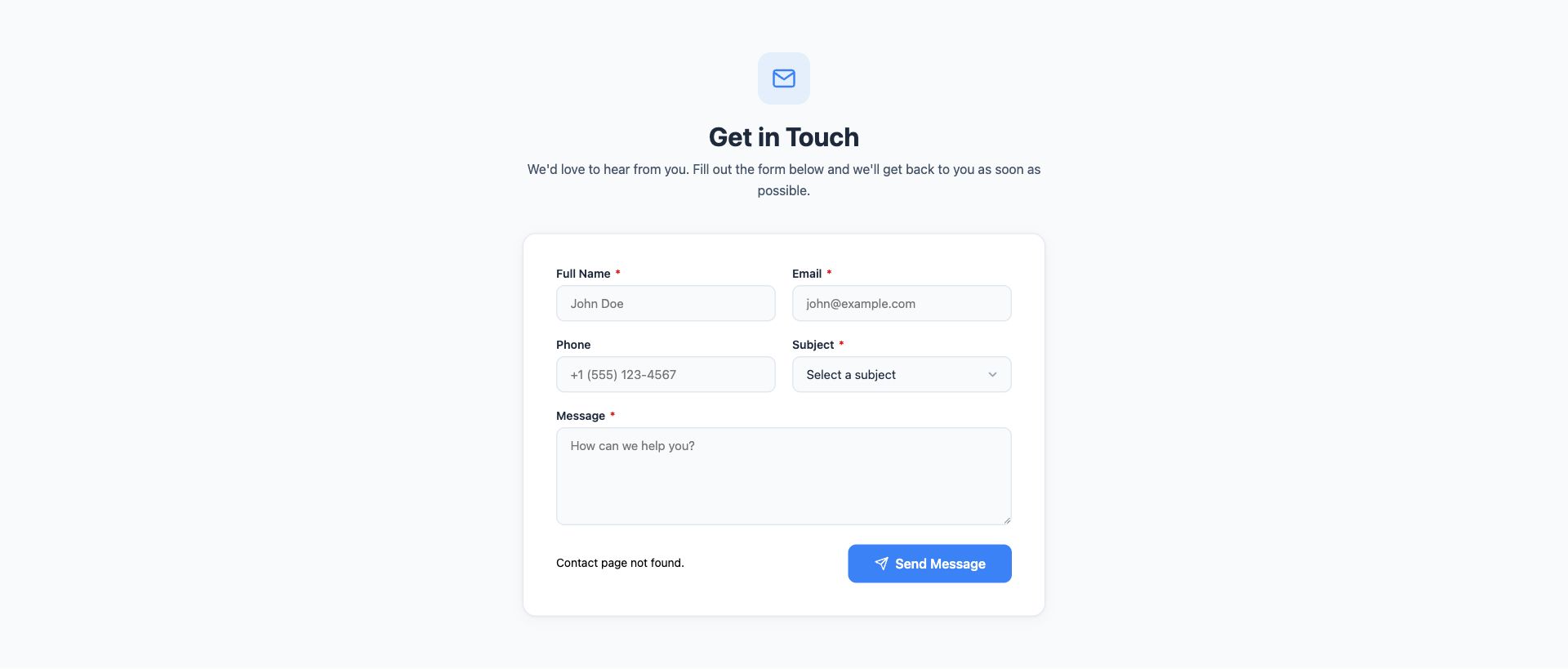
General Contact Form
Classic contact form with name, email, phone, subject dropdown, and message fields. Clean layout with field validation and a success confirmation.
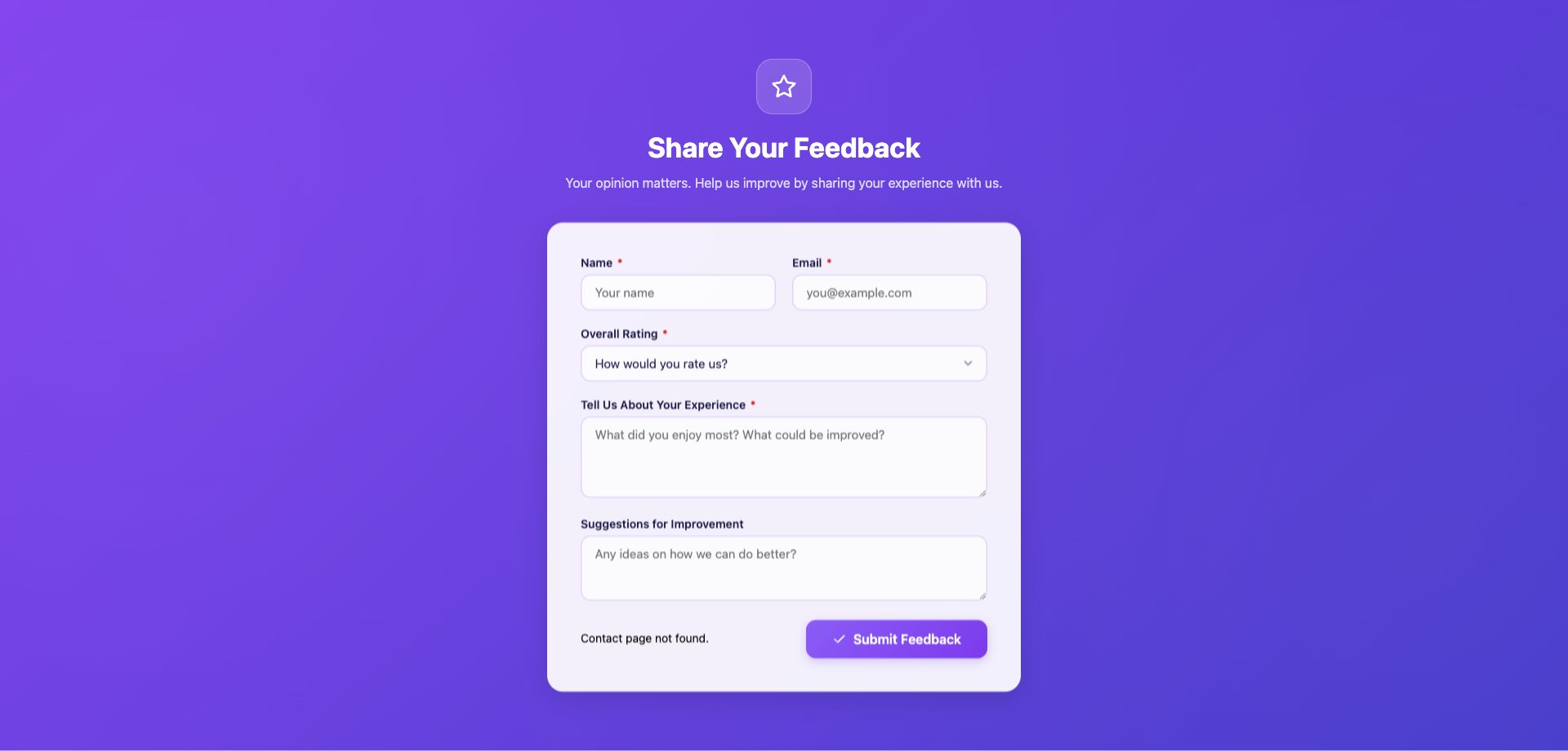
Customer Feedback Form
Customer satisfaction survey with star rating, experience categories, and open-ended suggestion fields. Ideal for post-purchase follow-up.
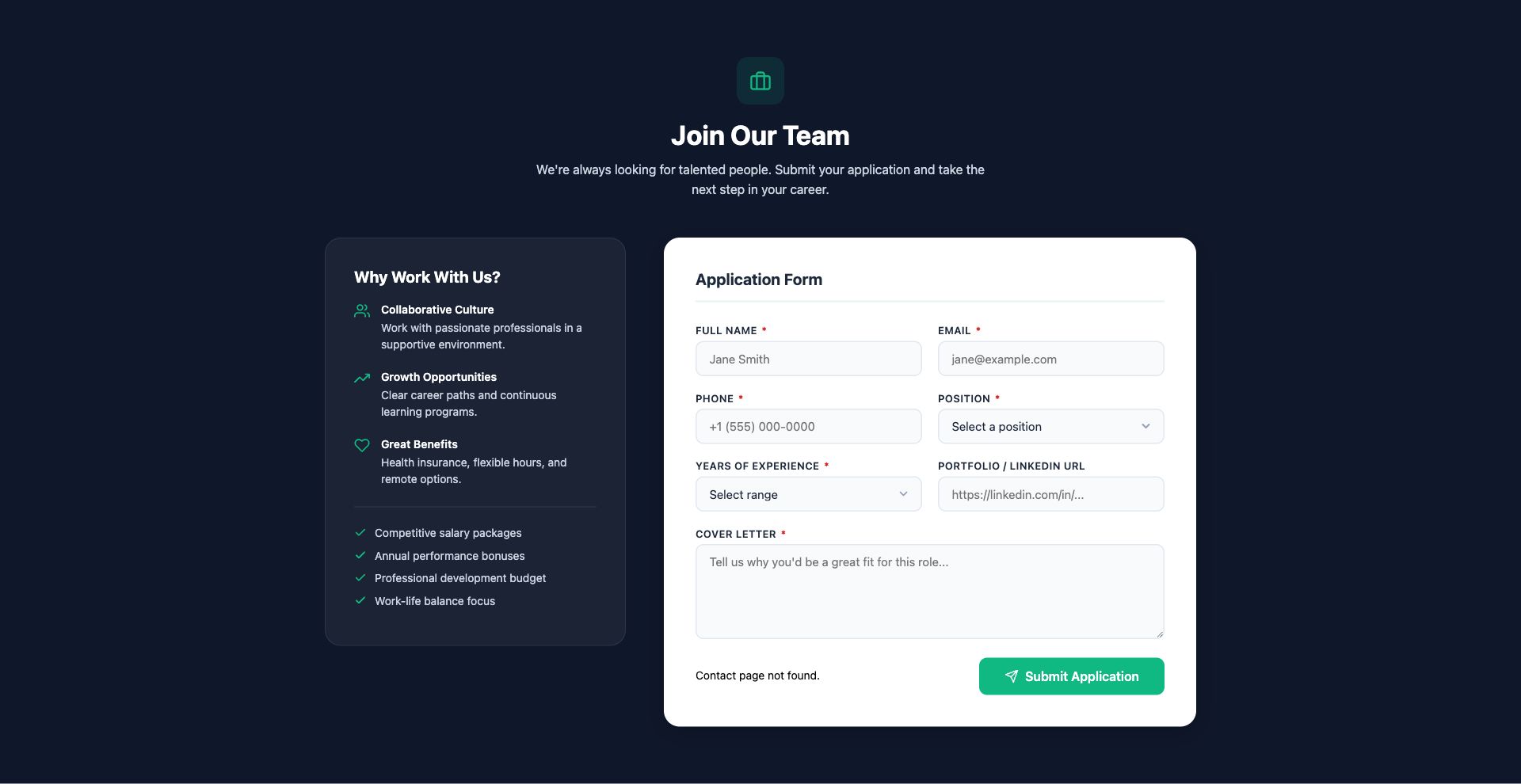
Job Application Form
Careers page form with position selection, experience level, availability, cover letter, and portfolio links.
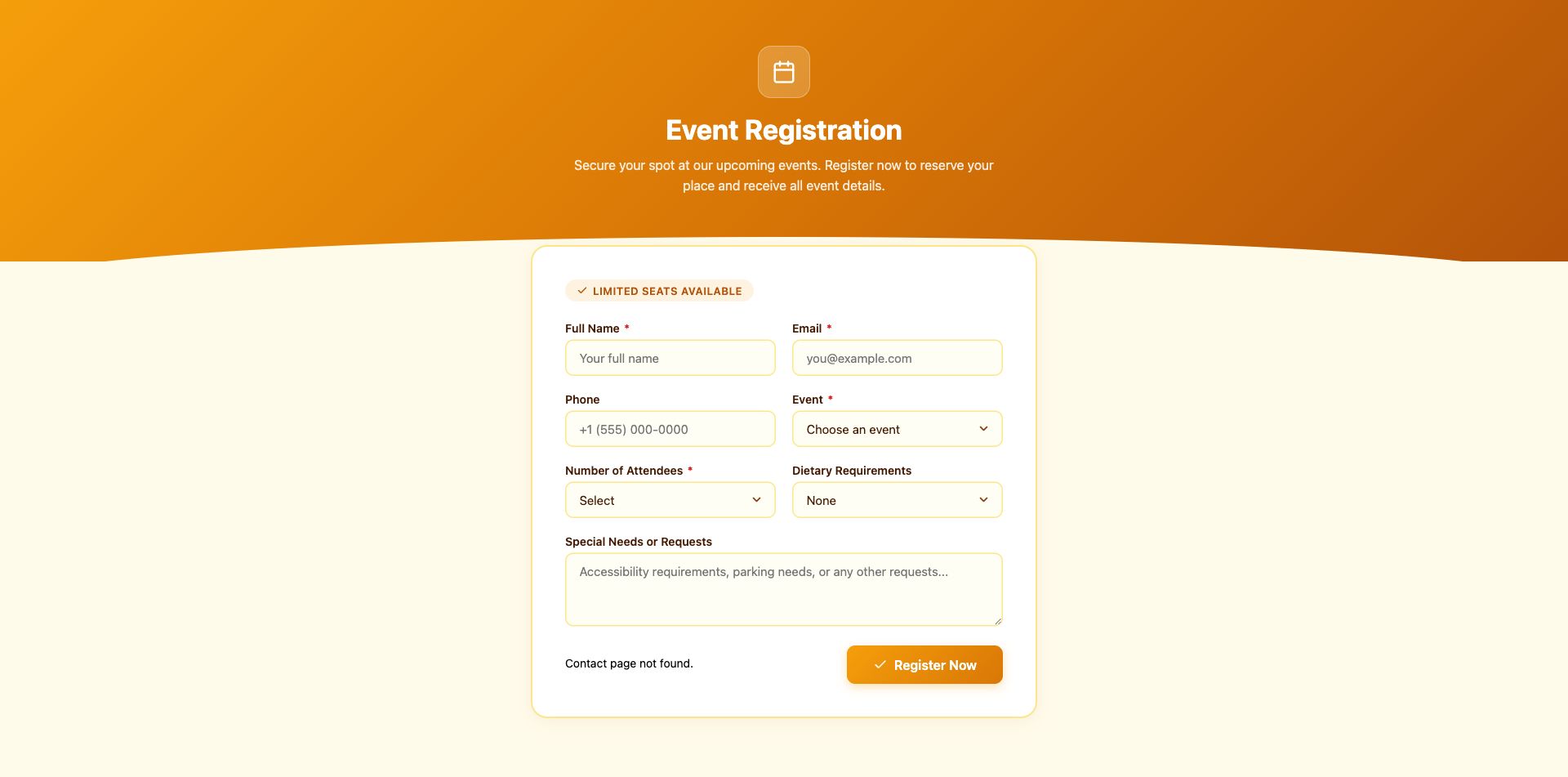
Event Registration Form
Event RSVP and registration with attendee details, ticket type, dietary preferences, and session selection.
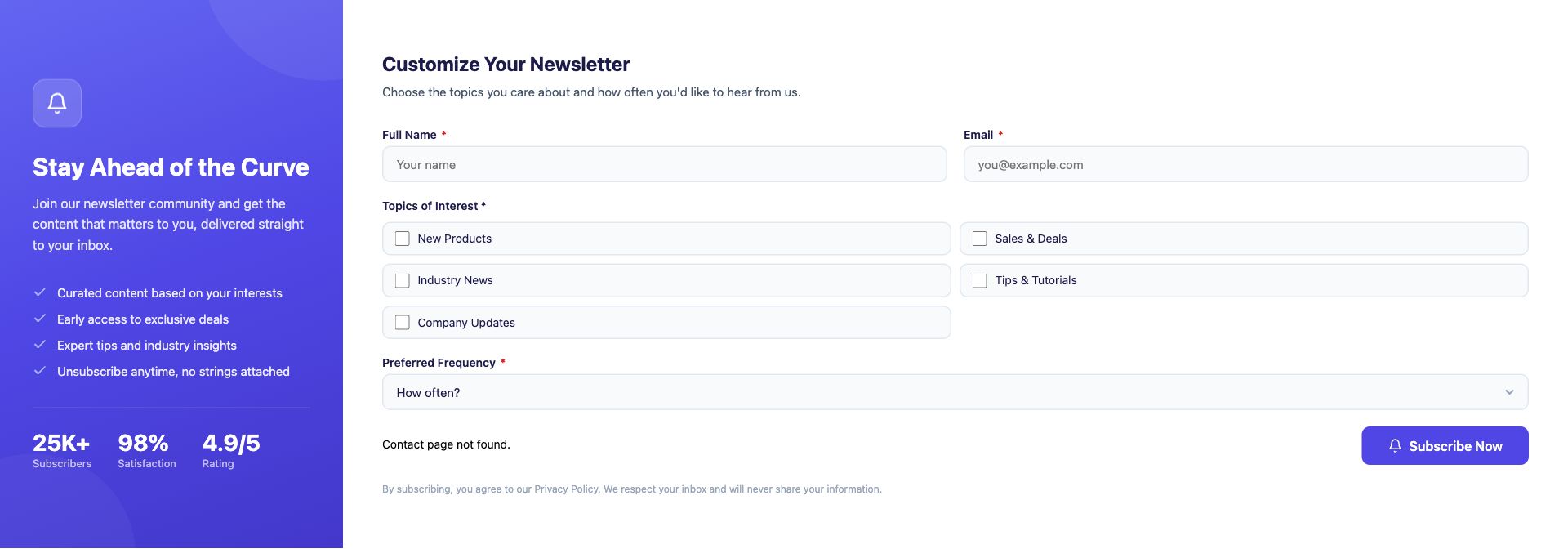
Newsletter Signup Enhanced
Advanced newsletter form with interest categories, frequency preferences, and an incentive offer. Goes beyond a basic email field.
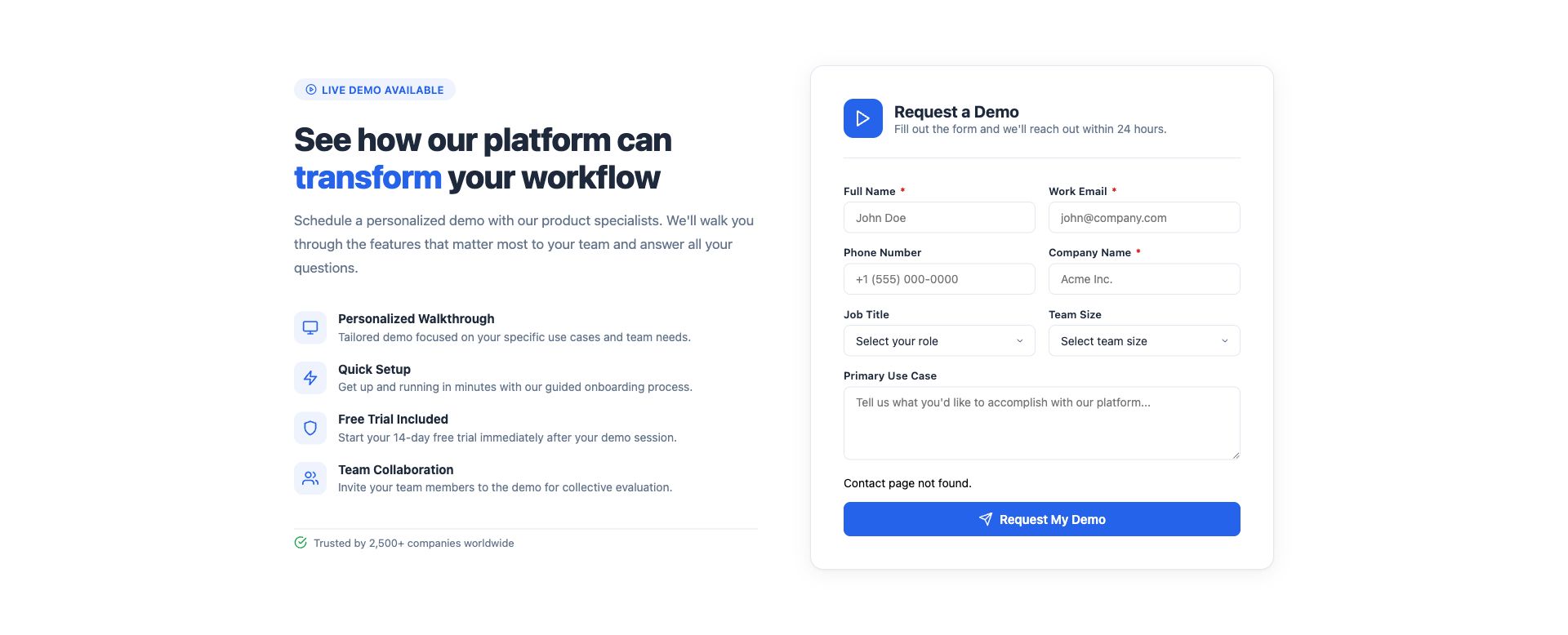
SaaS Demo Request Form
B2B demo request form with company details, team size, use case description, and preferred demo time.
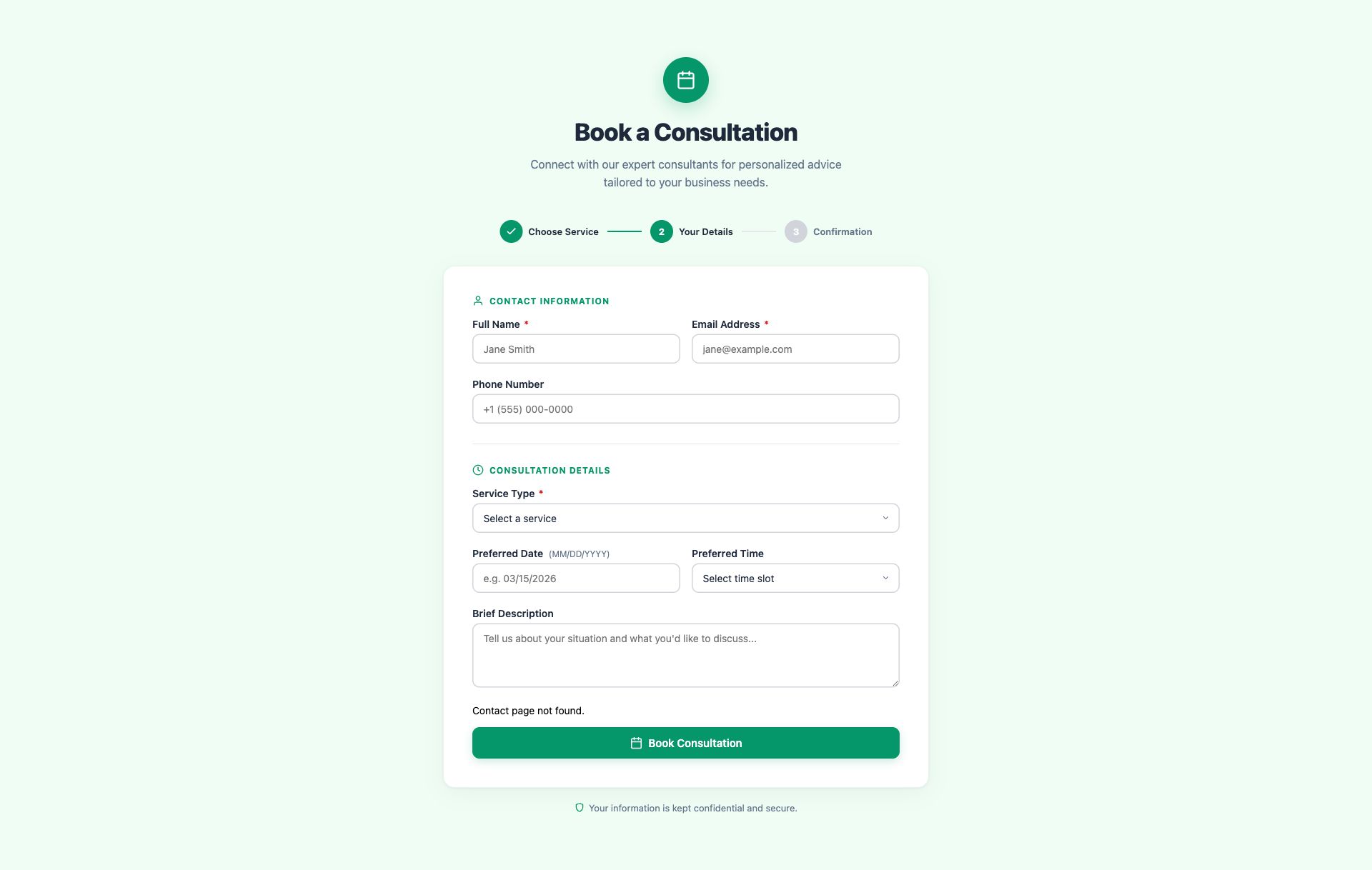
Consultation Booking Form
Service booking form with consultation type, preferred date and time, budget range, and project description.
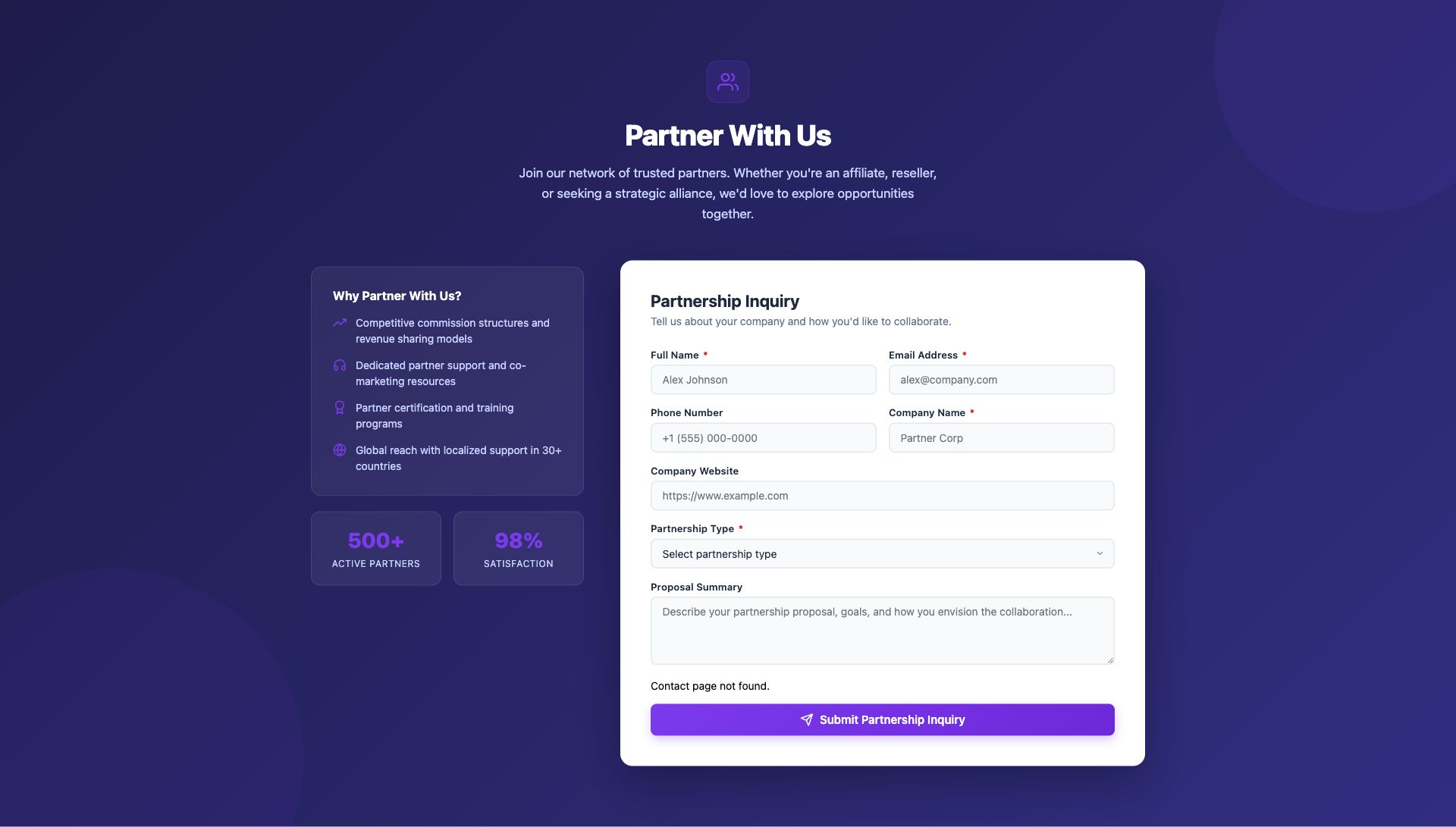
Partnership Inquiry Form
B2B partnership and affiliate inquiry with company profile, partnership type, and proposal details.
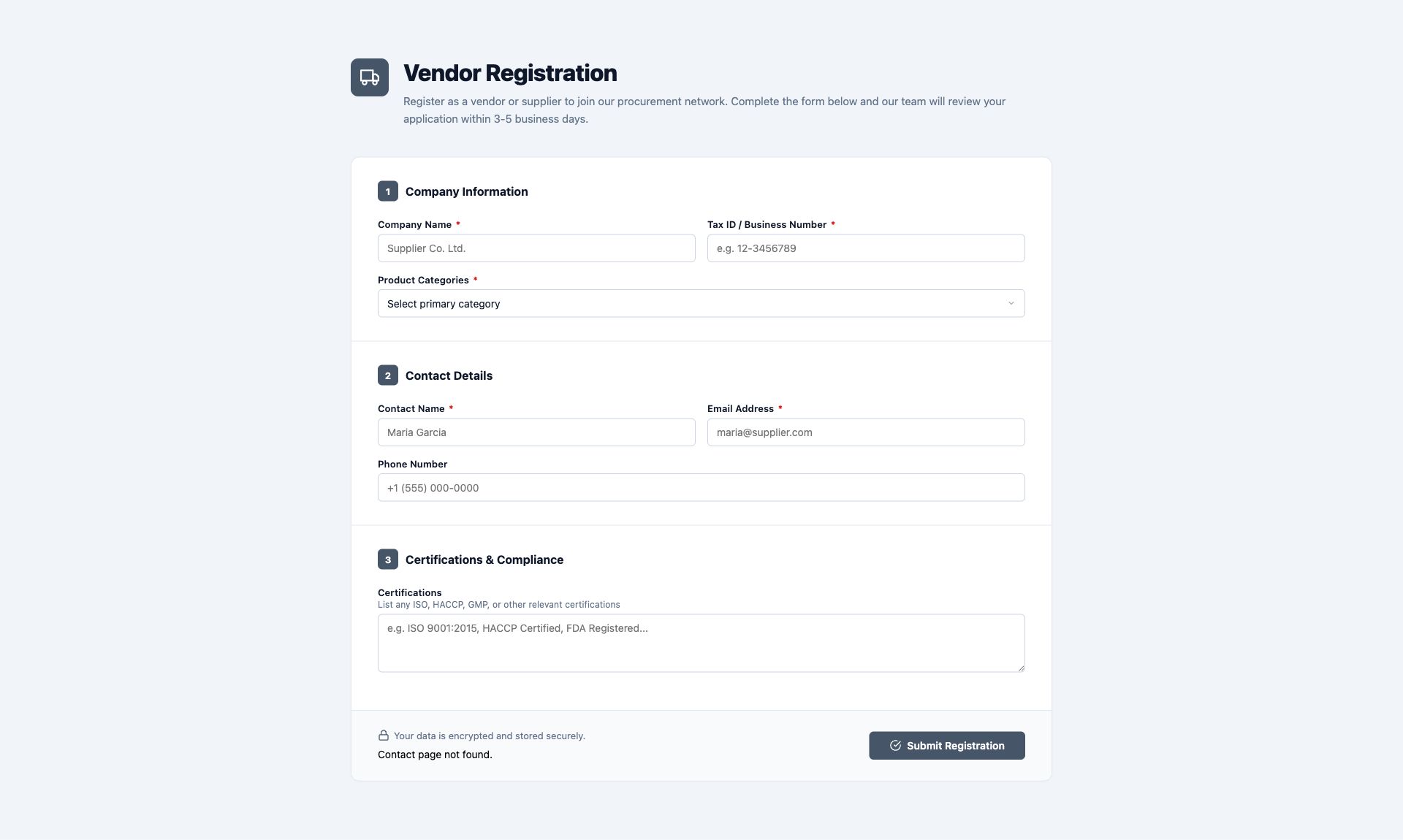
Vendor Registration Form
Supplier onboarding form with business details, product categories, tax ID, and certification uploads.
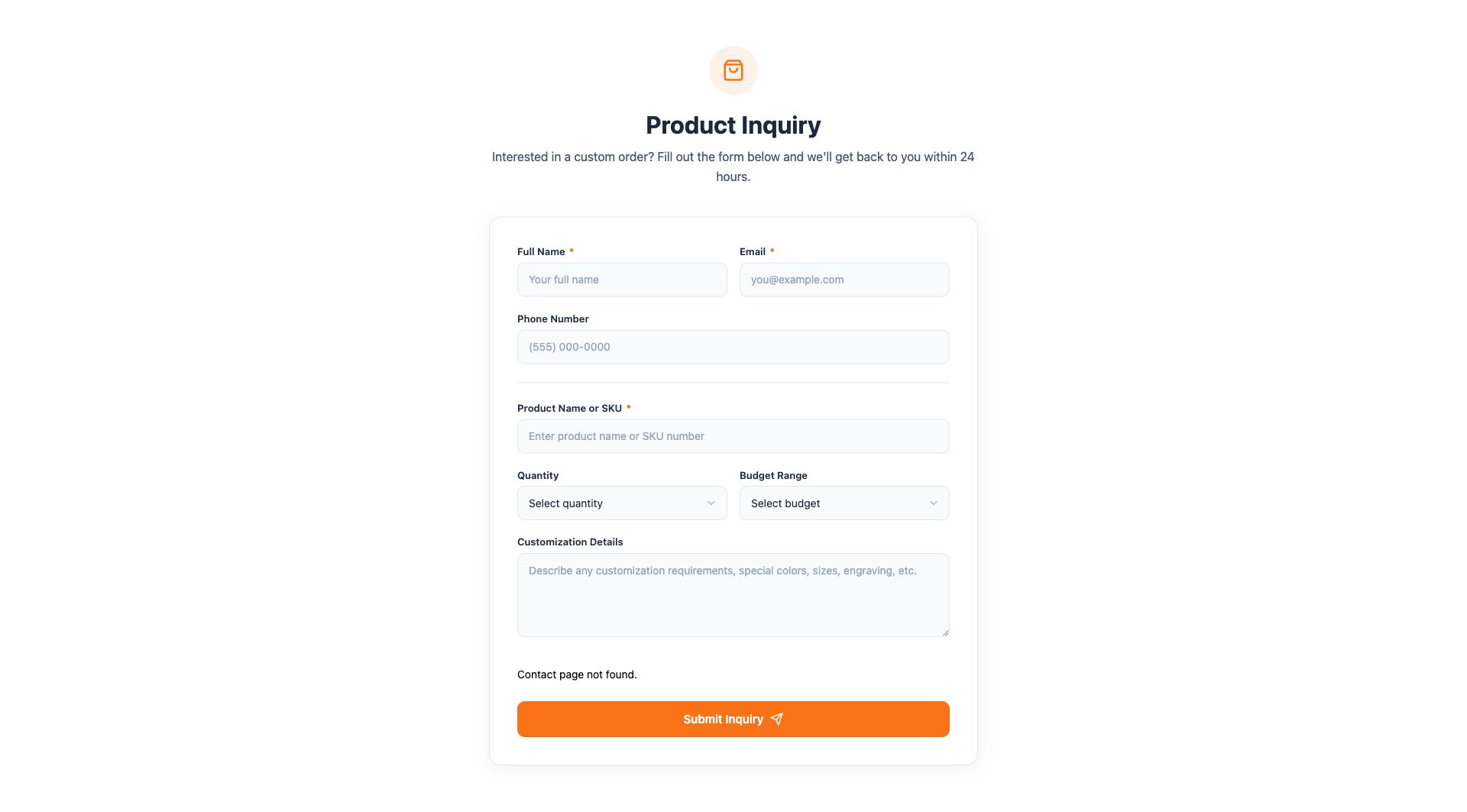
Product Inquiry Form
Custom order and product inquiry with product reference, customization options, quantity, and budget range.
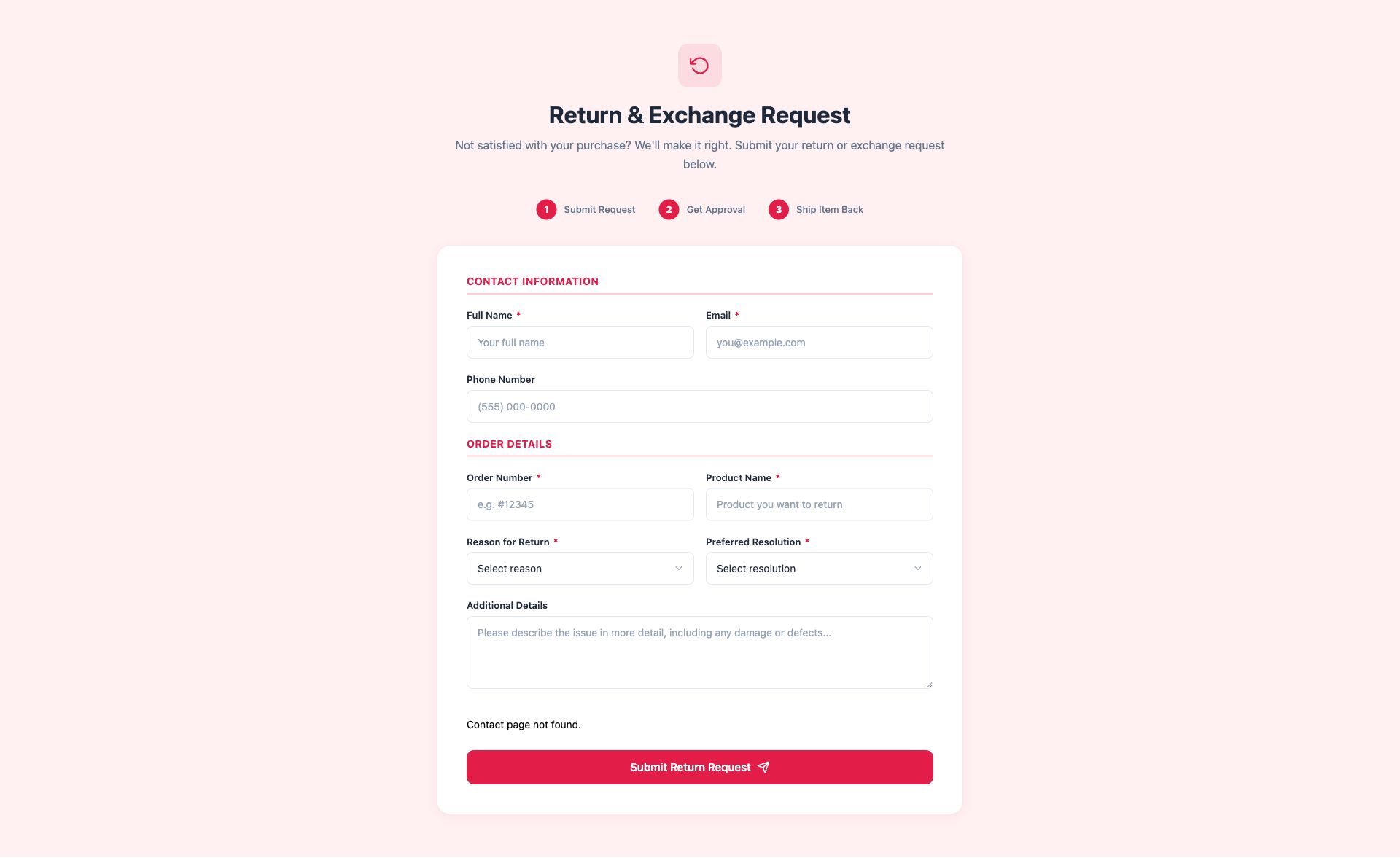
Return & Exchange Form
Post-purchase return or exchange request with order number, reason selection, and preferred resolution.
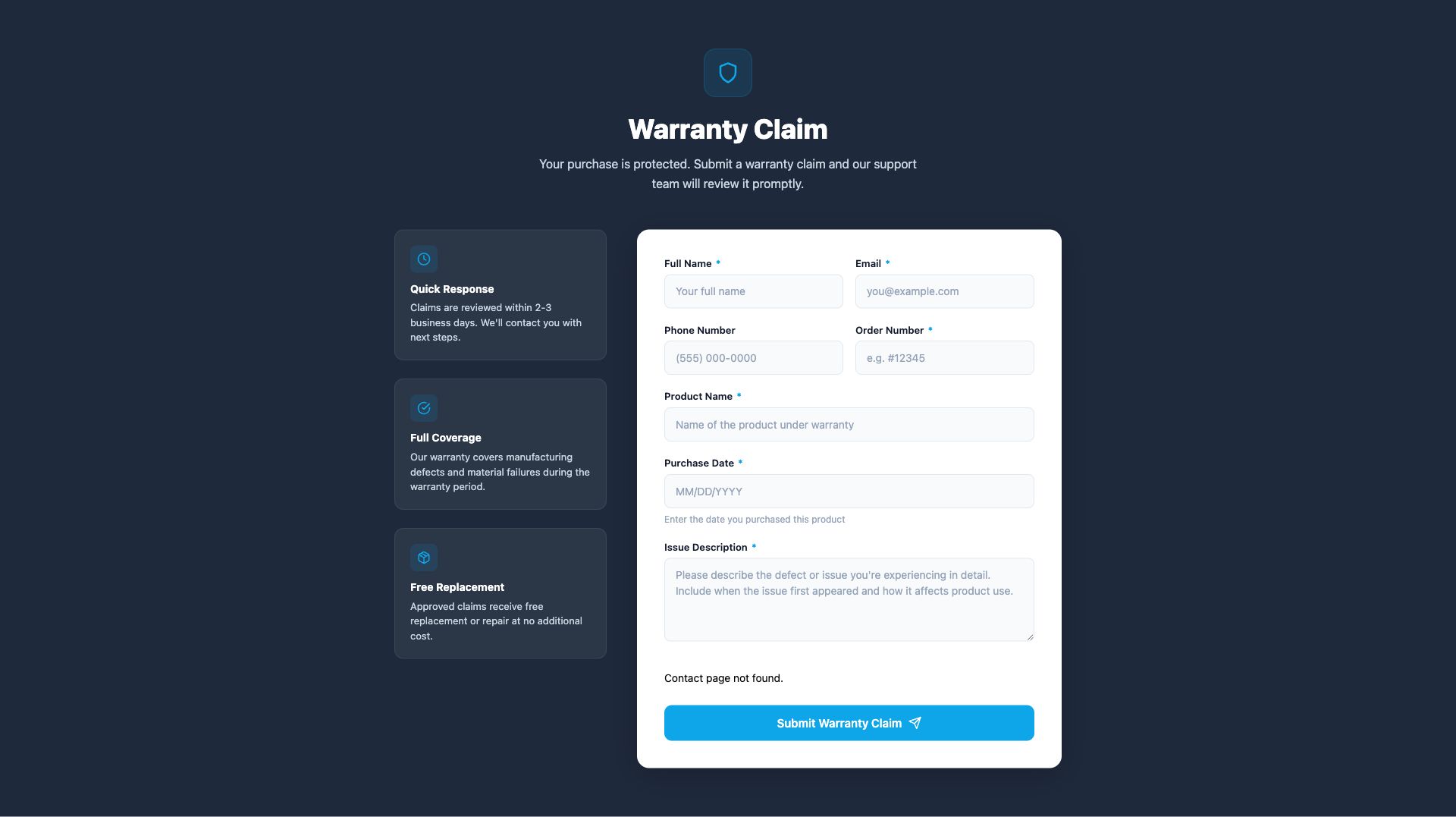
Warranty Claim Form
Warranty claim submission with product details, purchase date, issue description, and proof of purchase.
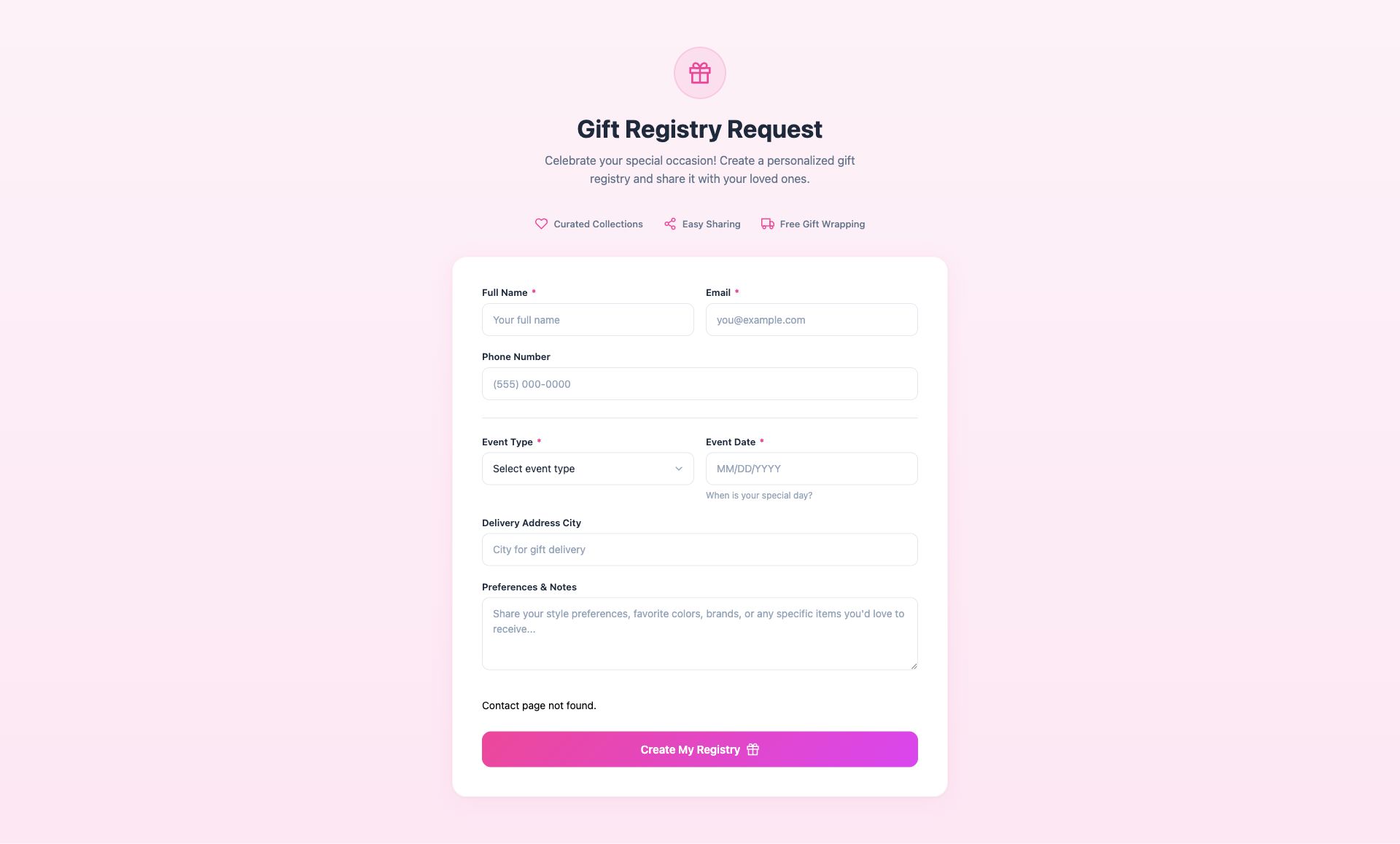
Gift Registry Form
Gift registry creation for weddings, baby showers, and events with date, preferences, and item categories.
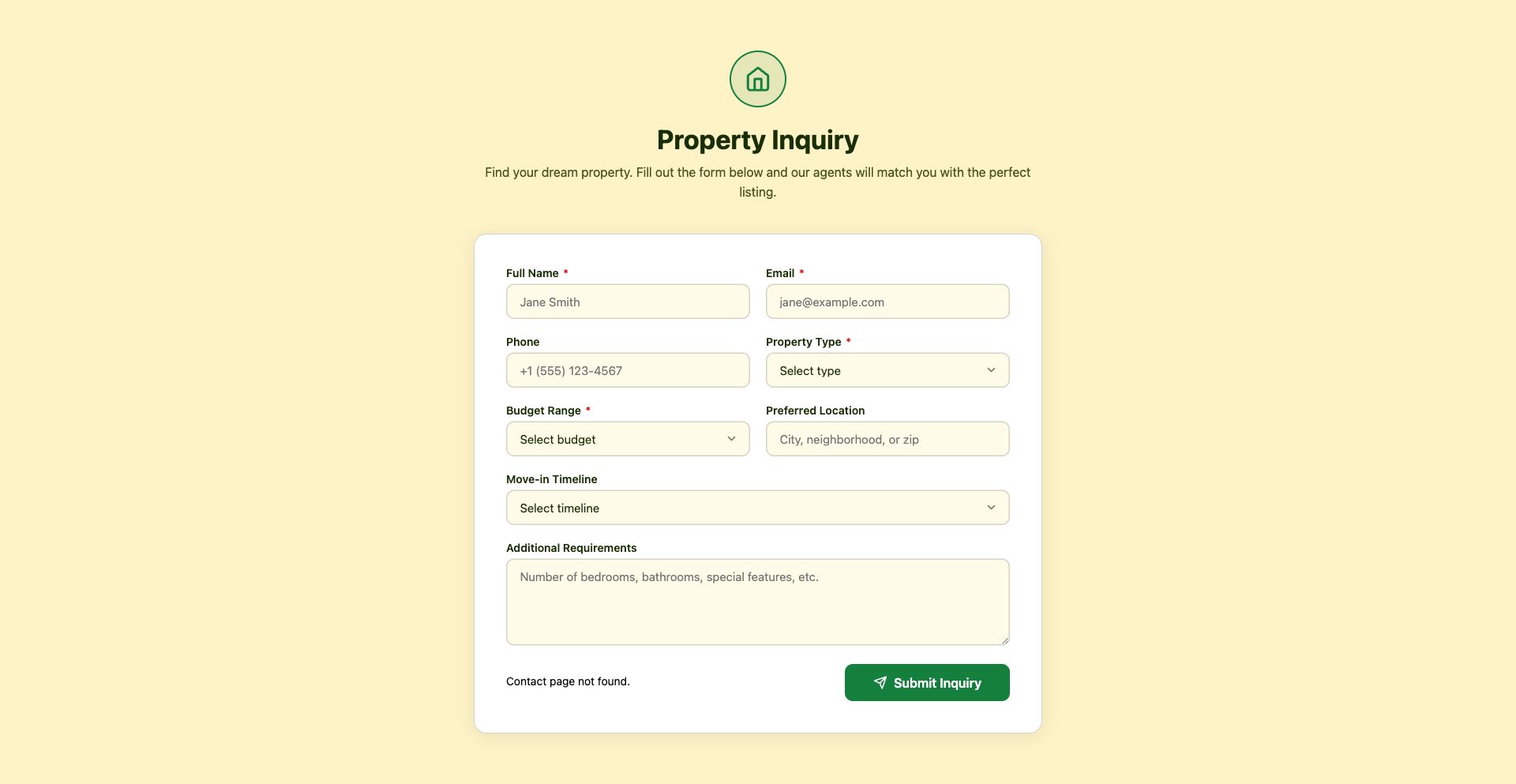
Real Estate Inquiry Form
Property inquiry with budget range, location preferences, property type, and move-in timeline.
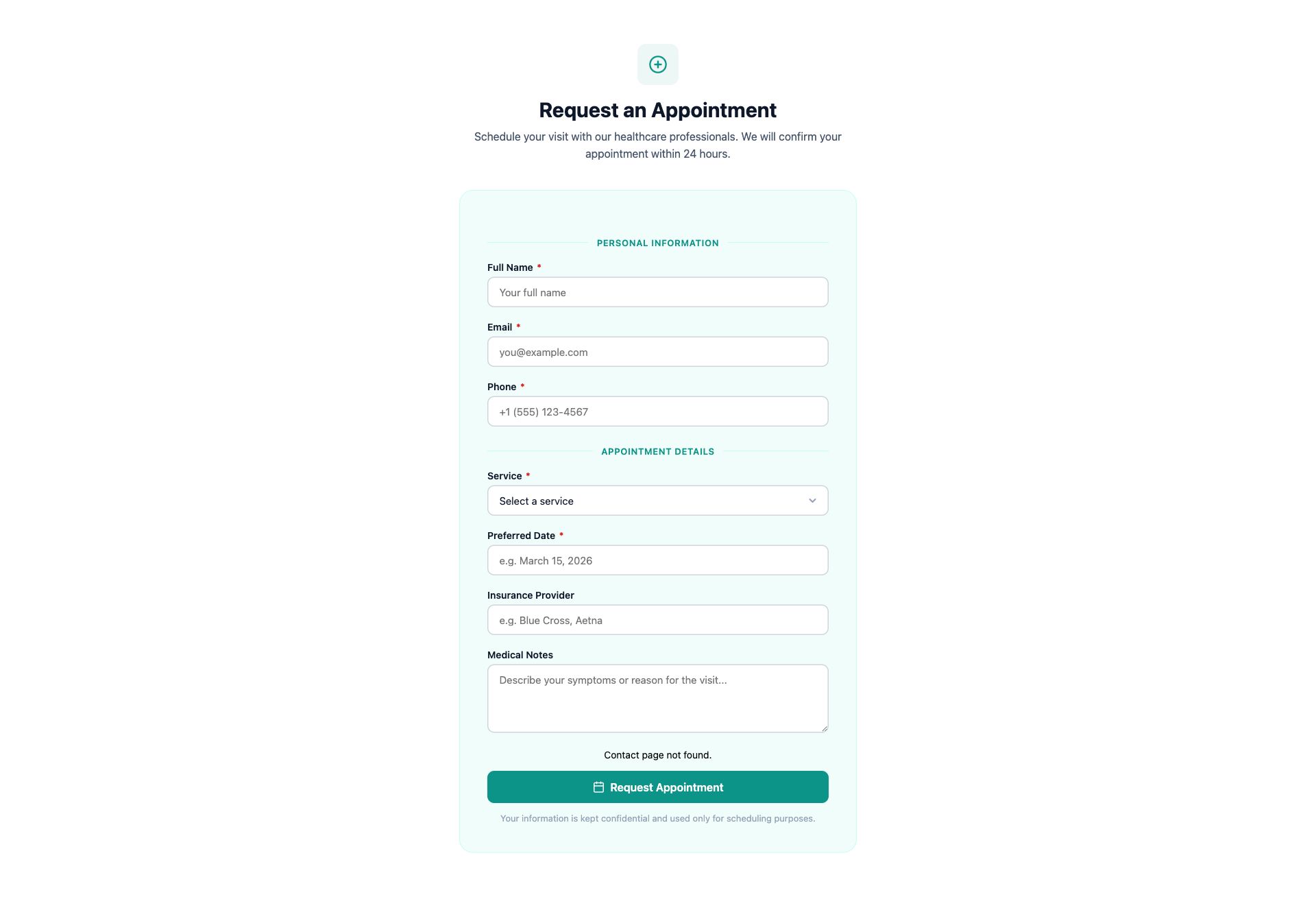
Healthcare Appointment Form
Medical appointment request with service type, insurance info, preferred provider, and medical notes.
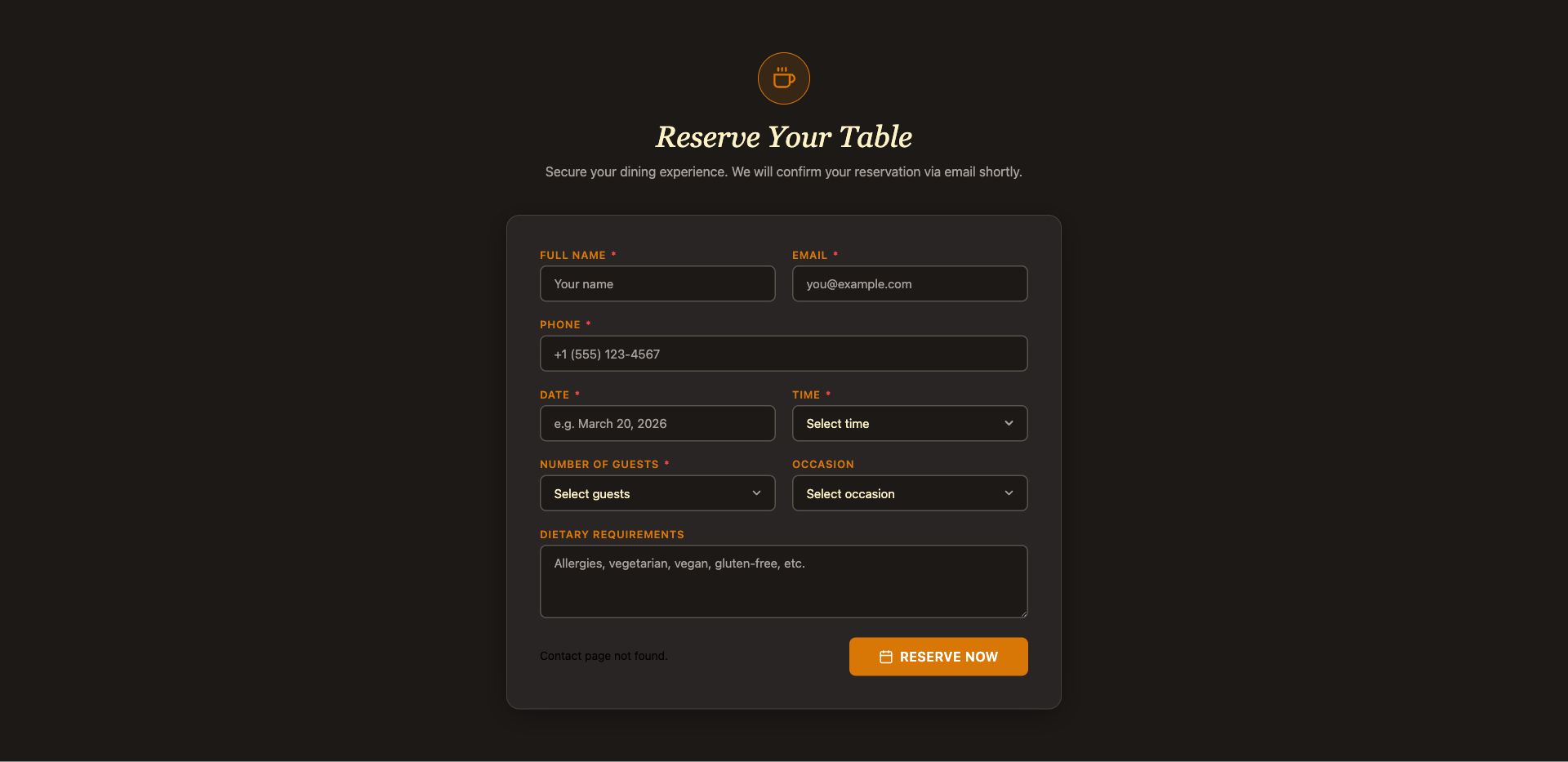
Restaurant Reservation Form
Dining reservation with party size, date and time, seating preference, dietary restrictions, and special occasions.
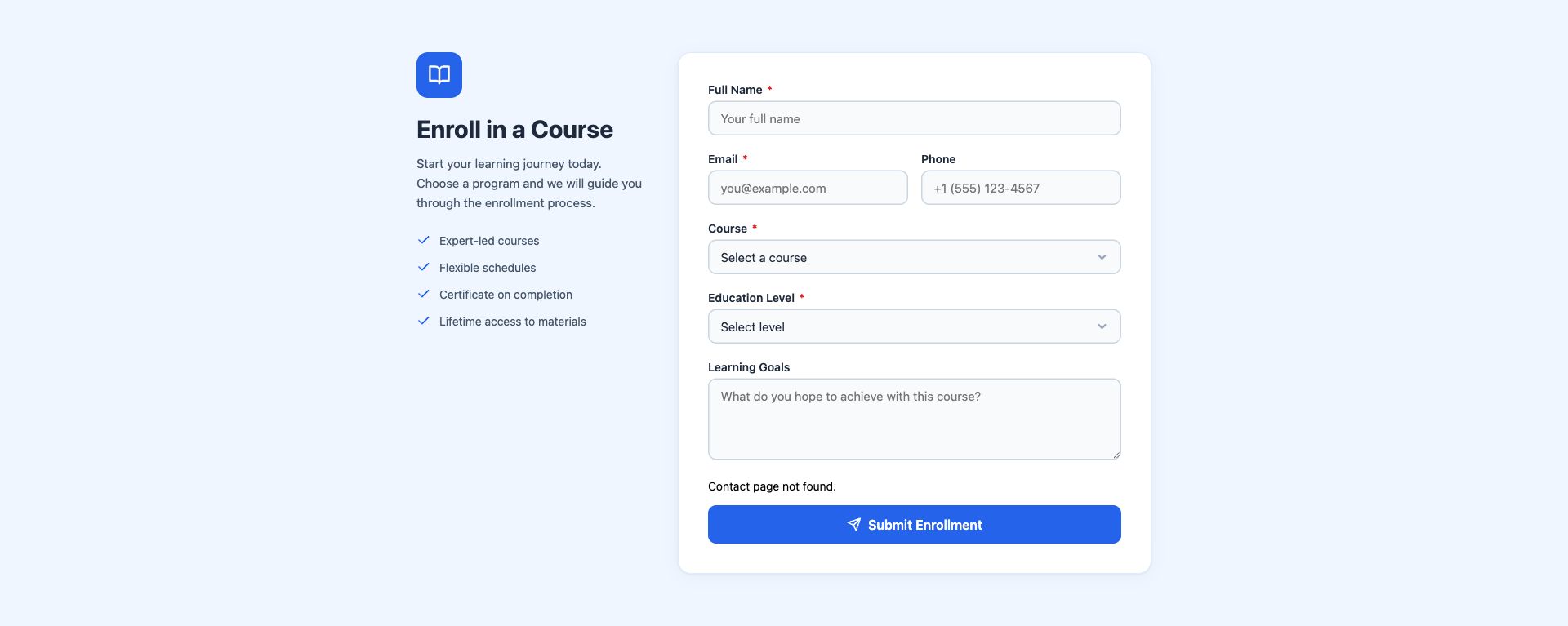
Course Enrollment Form
Education enrollment with student info, course selection, experience level, and learning goals.
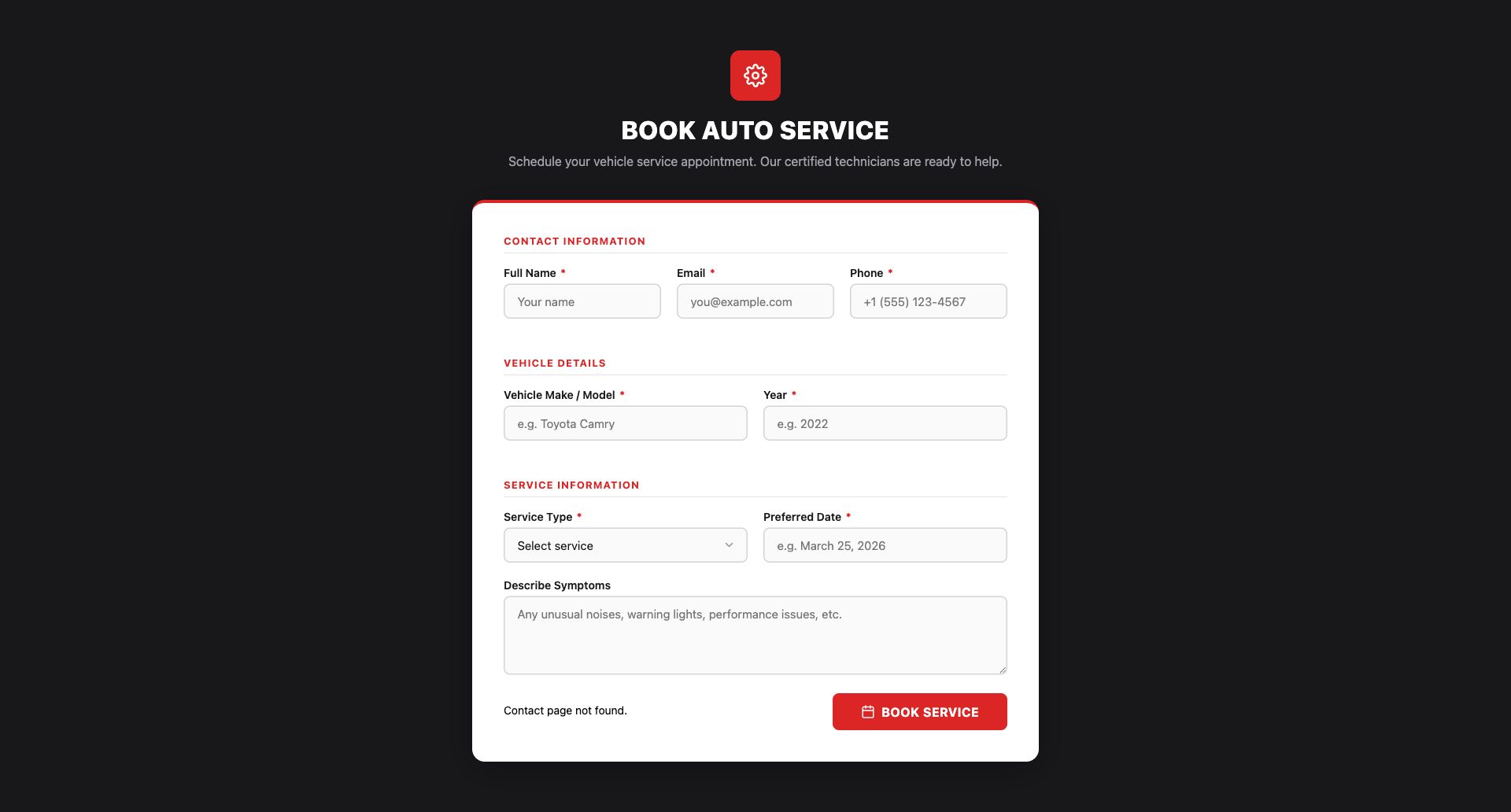
Auto Service Booking Form
Automotive service scheduling with vehicle details, service type, preferred date, and issue description.
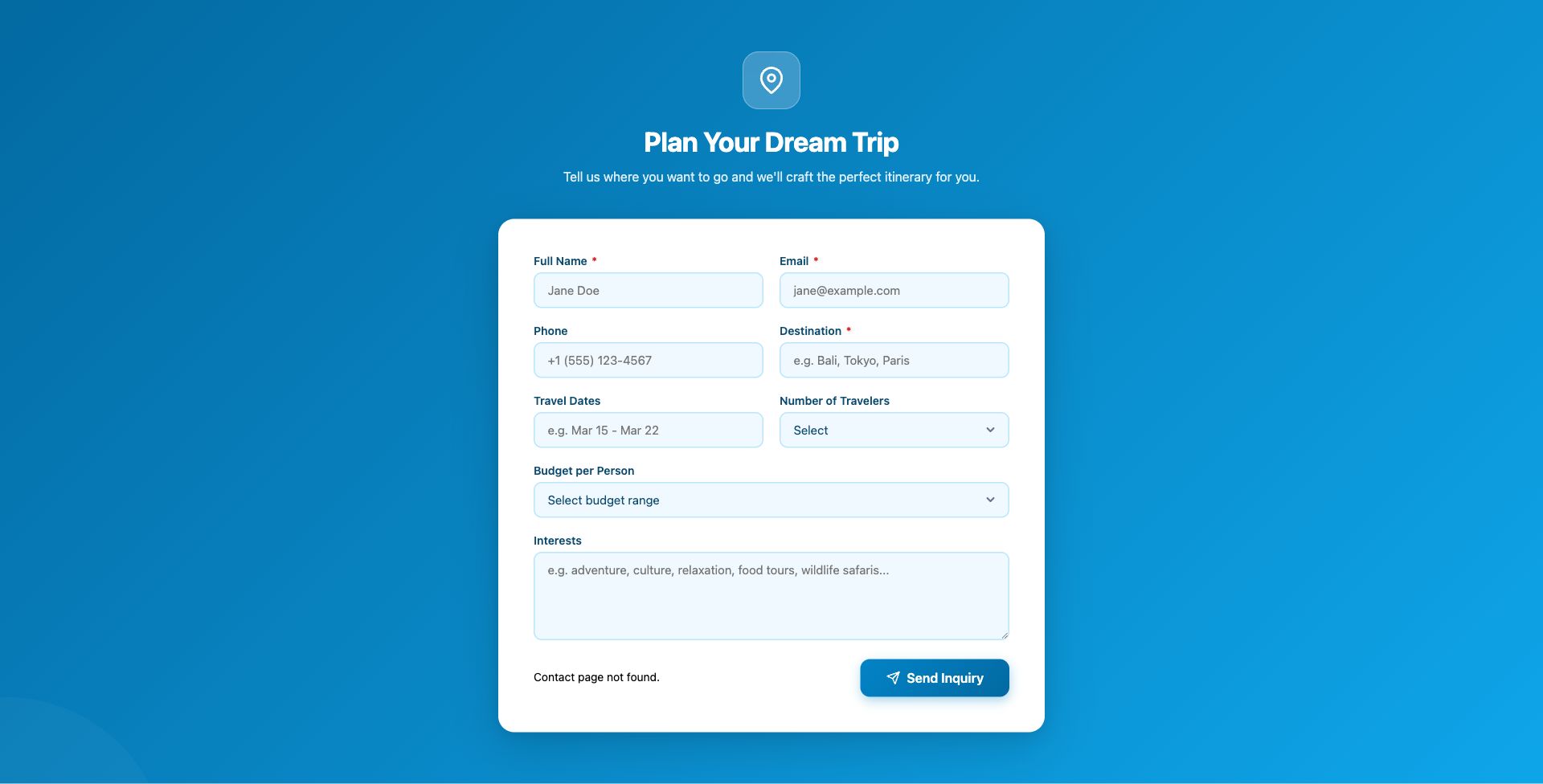
Travel Trip Inquiry Form
Travel inquiry with destination, travel dates, number of travelers, budget, and trip preferences.
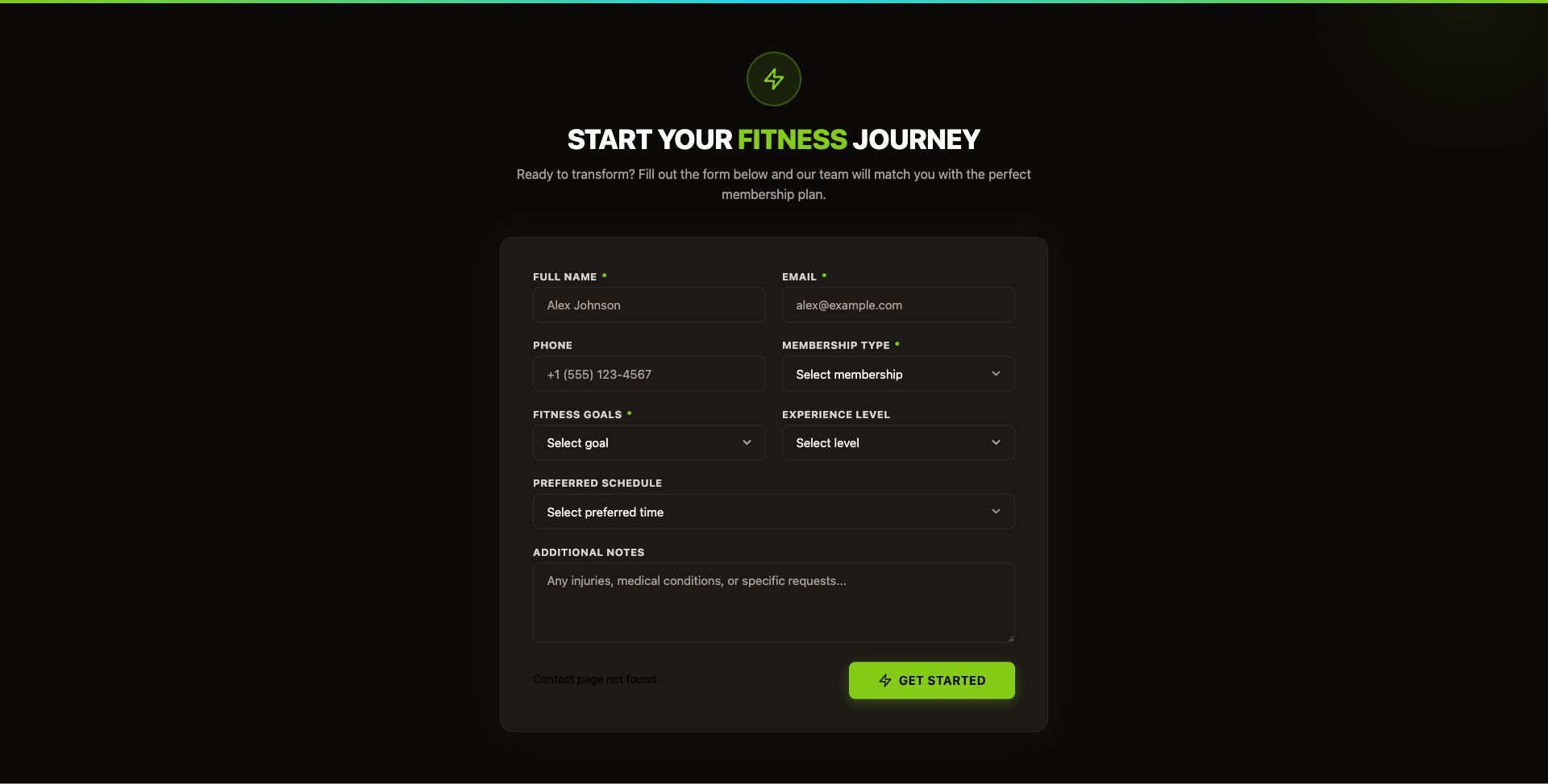
Fitness Membership Form
Gym membership inquiry with fitness goals, experience level, preferred schedule, and membership tier.
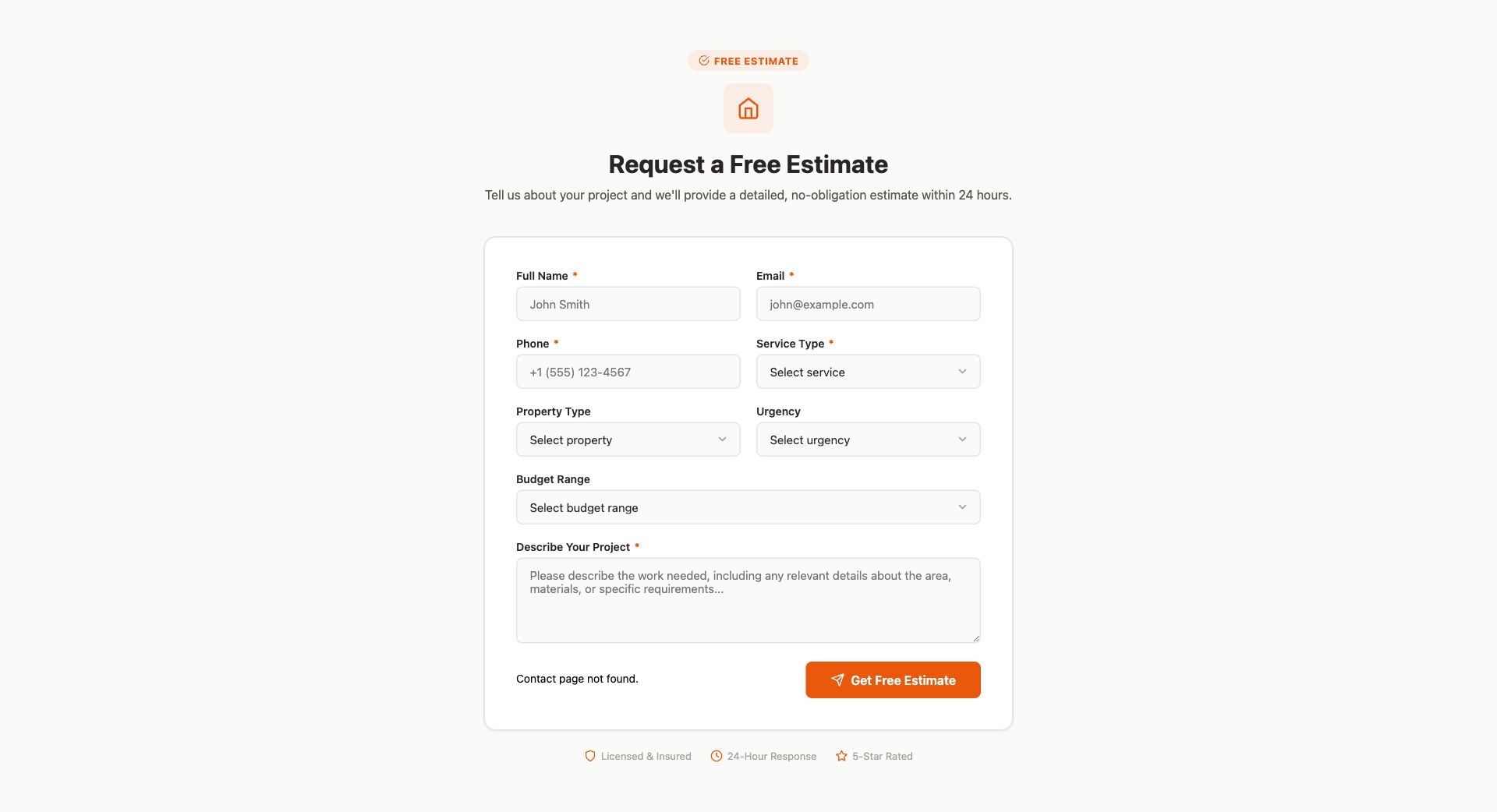
Home Services Estimate Form
Free estimate request for home services with property type, service needed, urgency, and budget range.
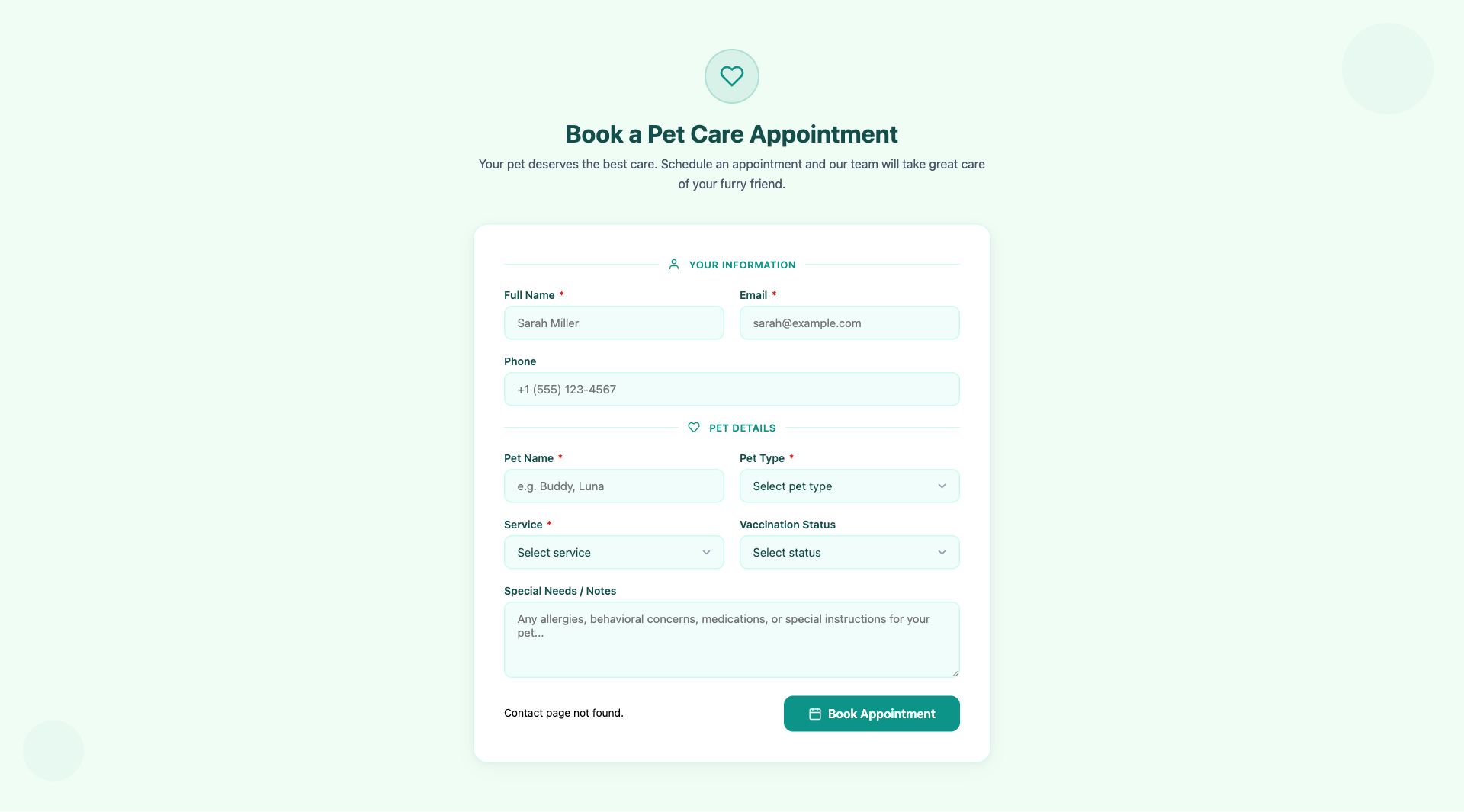
Pet Care Appointment Form
Pet care booking with pet details, service type (vet, grooming, boarding), vaccination status, and special needs.
Popup Templates
A collection of conversion-focused popups for promotions, lead capture, compliance, and customer engagement. Each one is responsive and includes built-in timing — appearing after a delay, when a visitor is about to leave, or on a click — and remembers when a visitor has dismissed it so it does not keep reappearing.
Marketing & Promotions
Drive sales with urgency-based promotional popups.
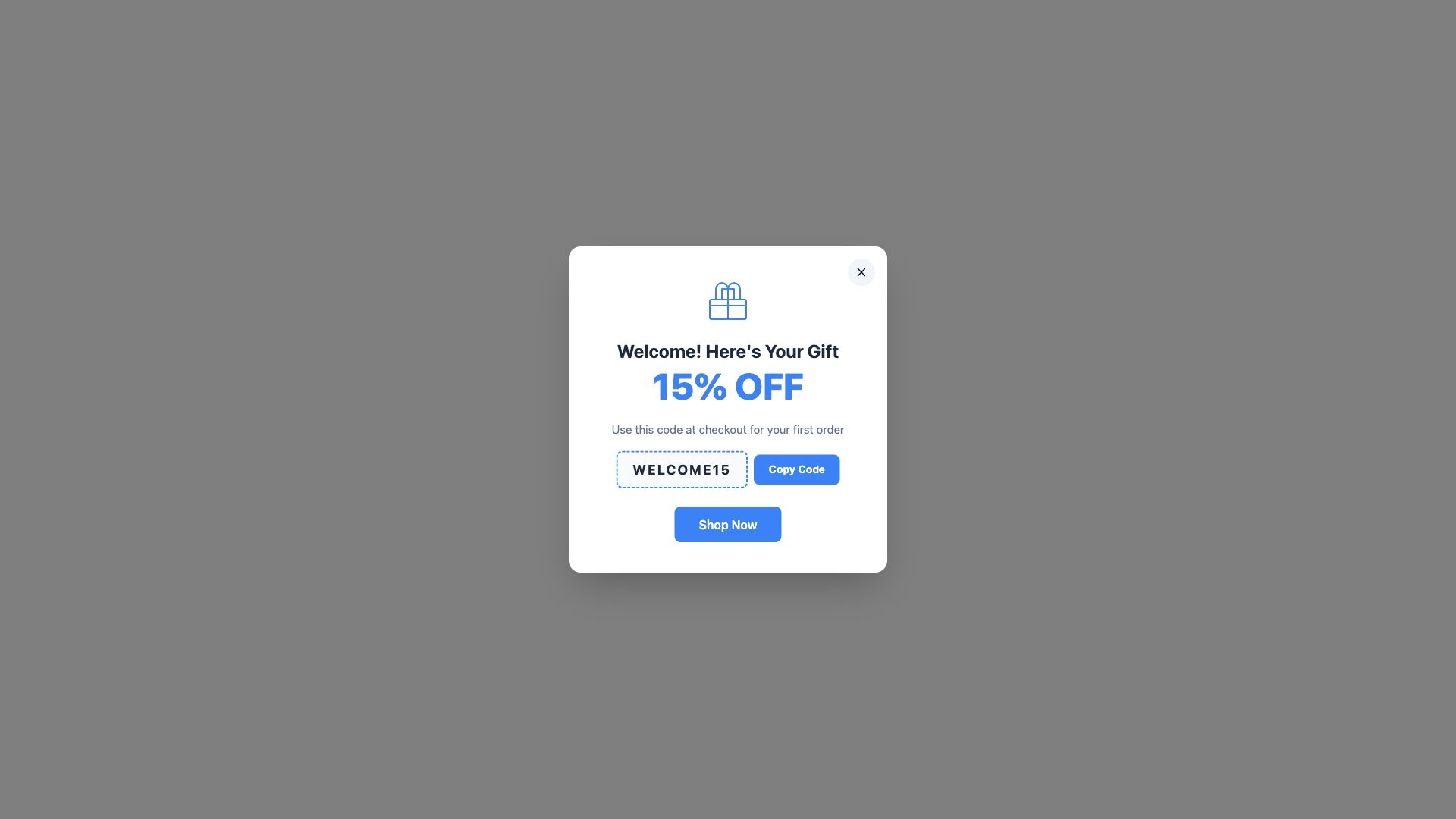
Welcome Discount Popup
First-time visitor welcome with a discount code and one-click copy. Appears after a short delay with a dimmed background.
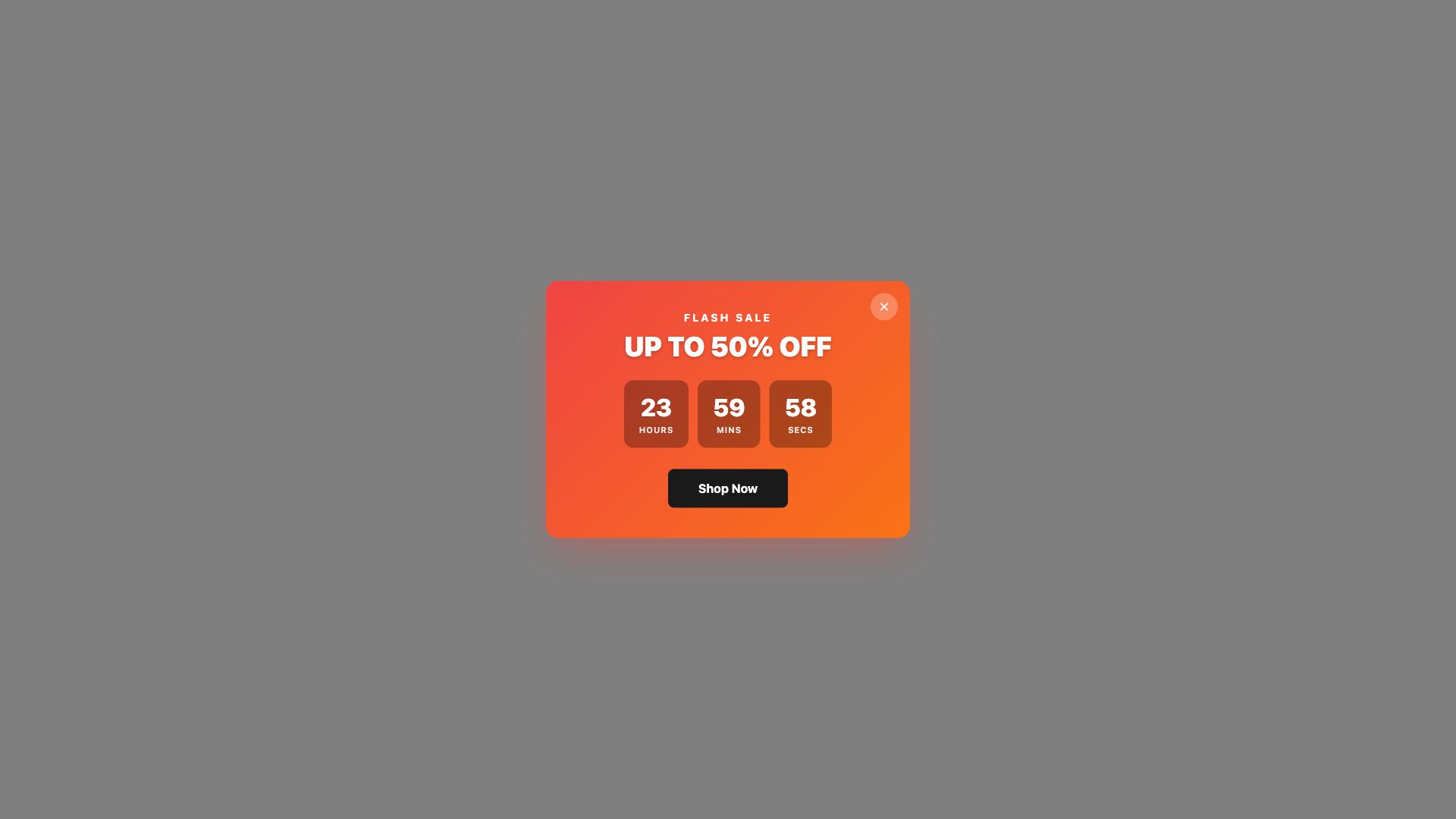
Flash Sale Countdown Popup
Live countdown timer that creates urgency for limited-time offers, with a days, hours, minutes, and seconds display.
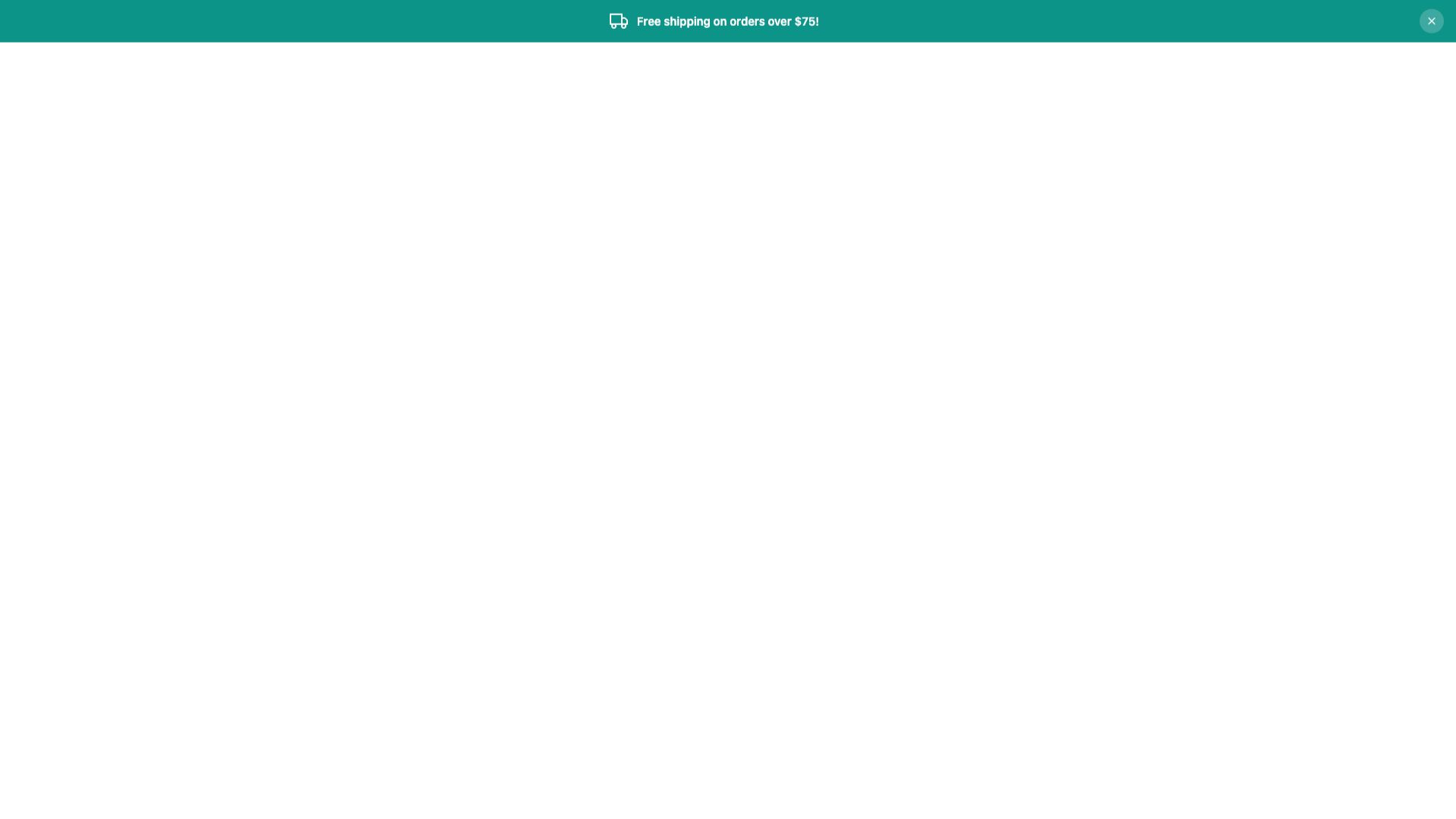
Free Shipping Bar
Floating top bar announcing your free shipping threshold. Stays visible and unobtrusive as customers browse.
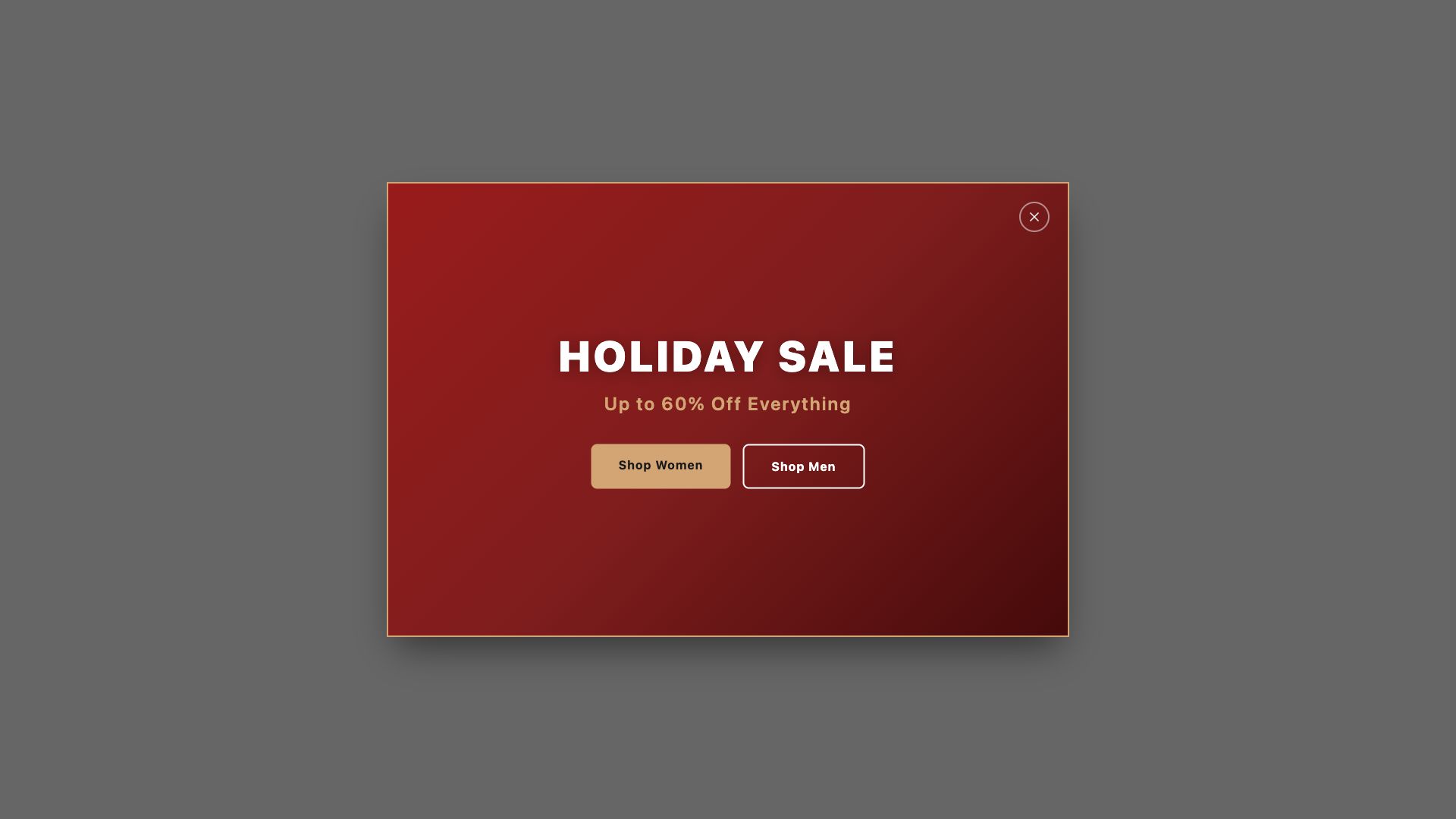
Seasonal Promo Popup
Full-screen takeover for major seasonal campaigns — Black Friday, Christmas, summer sales — with high-impact visuals.
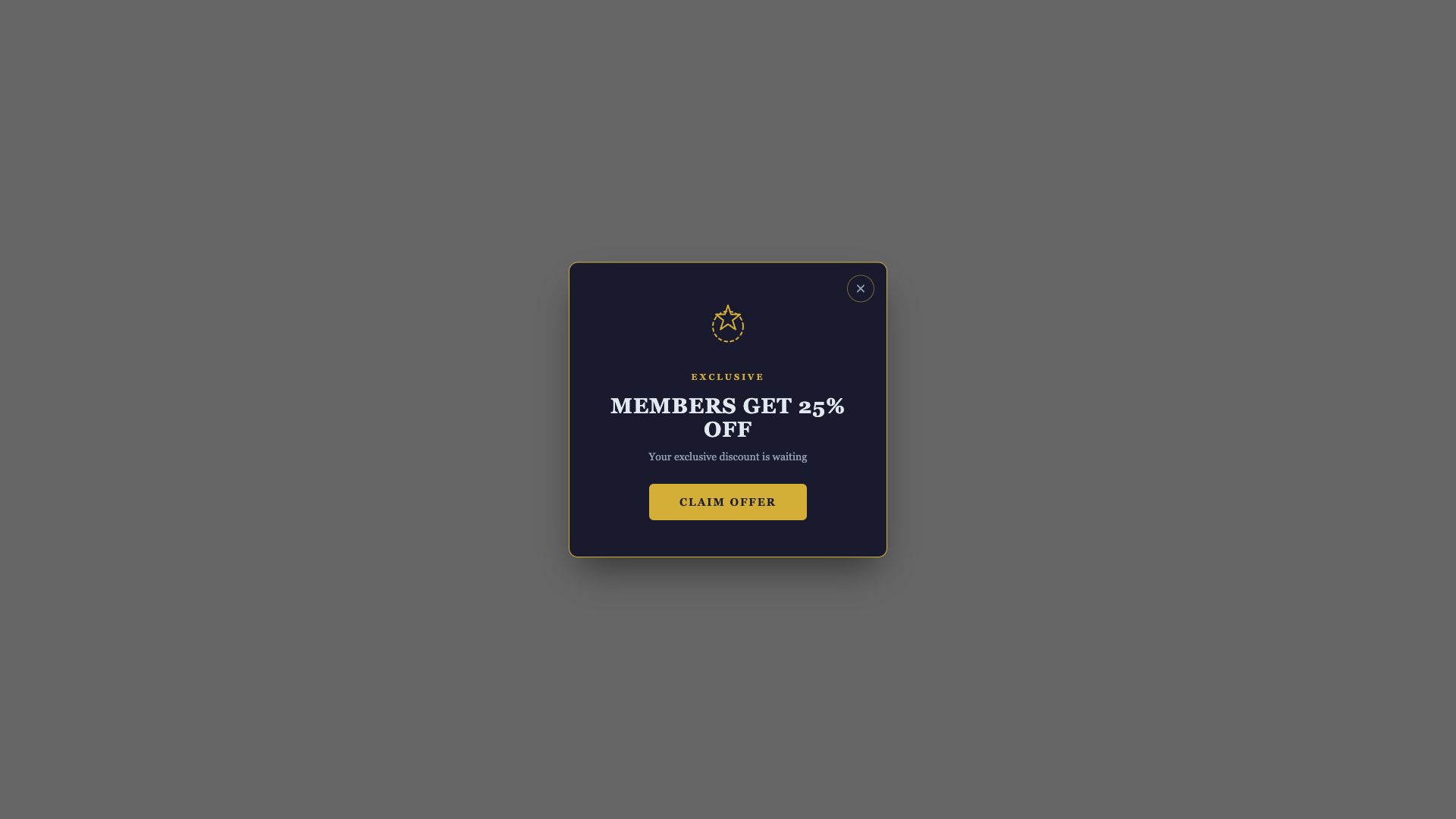
Exclusive Member Deal
VIP member-only offer with a premium gold-accent design. Creates exclusivity and rewards loyal customers.

Limited Stock Urgency
Slide-in notice showing a low stock count to encourage faster purchase decisions.
Lead Capture & Newsletter
Grow your email list and capture leads with engaging signup forms.
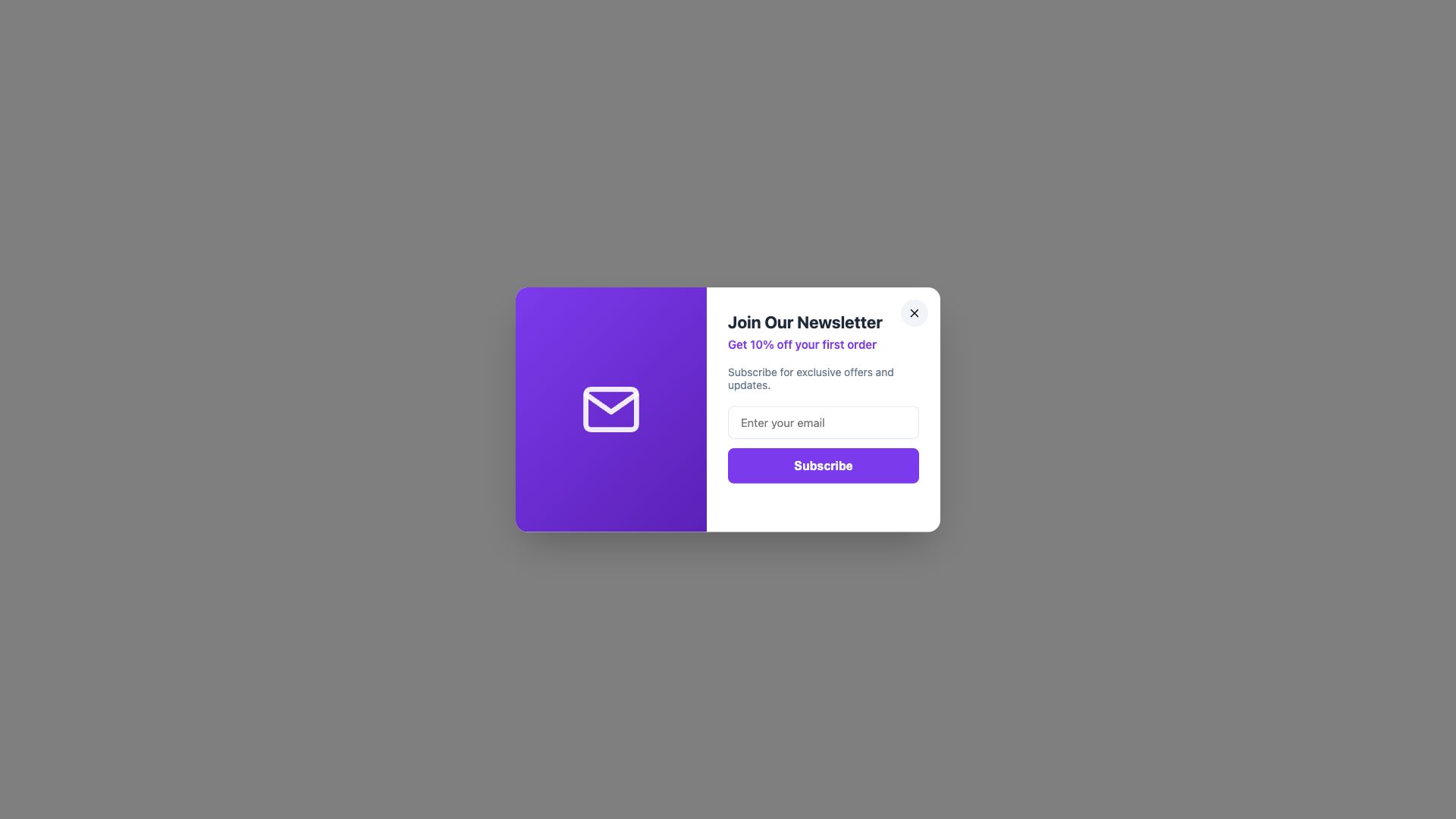
Newsletter Signup Popup
Email subscription popup with an incentive offer. Subscribers are added to your BigCommerce store automatically.
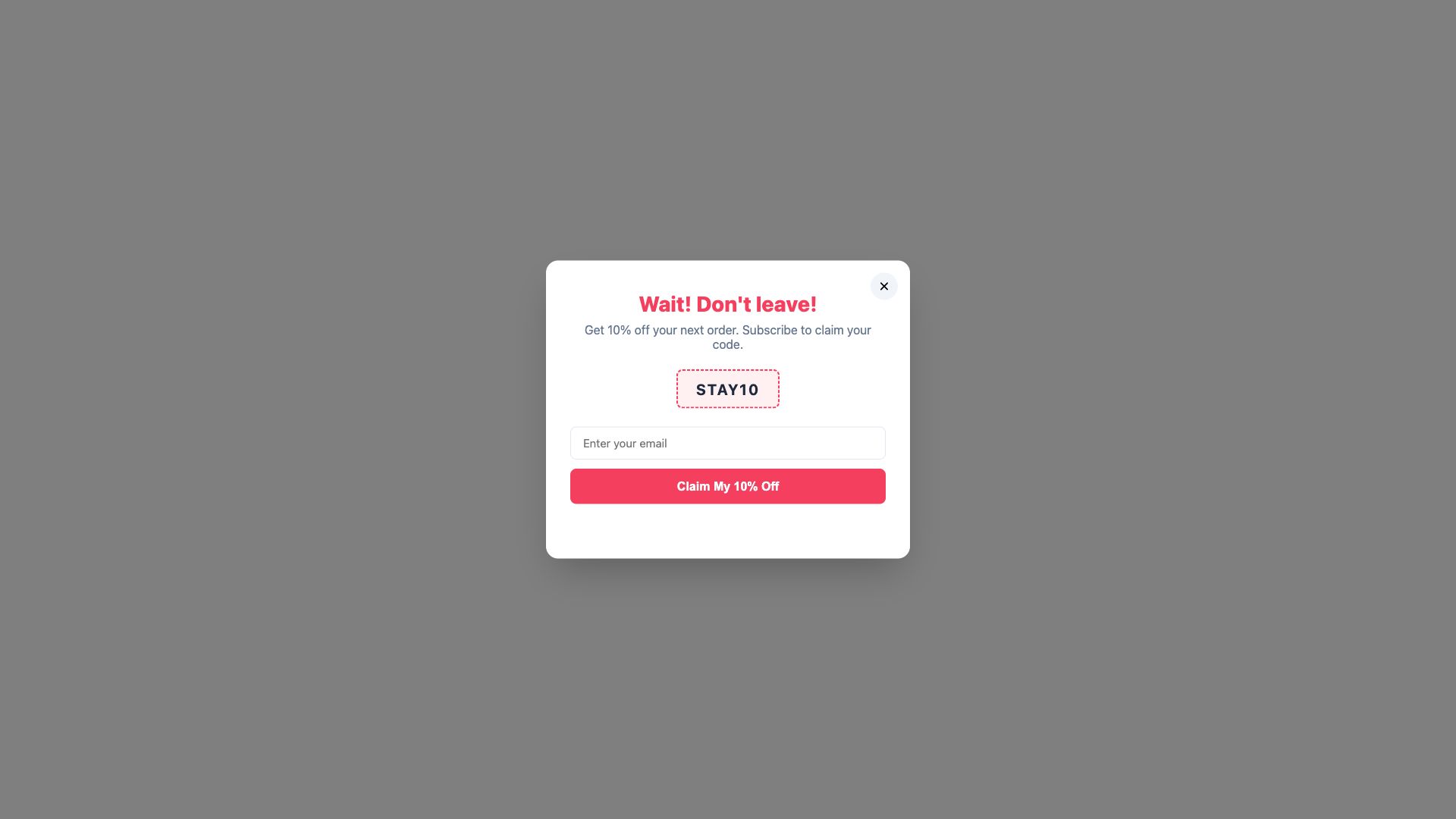
Exit Intent Offer
Appears when a visitor is about to leave the page — a last-chance discount to win them back.
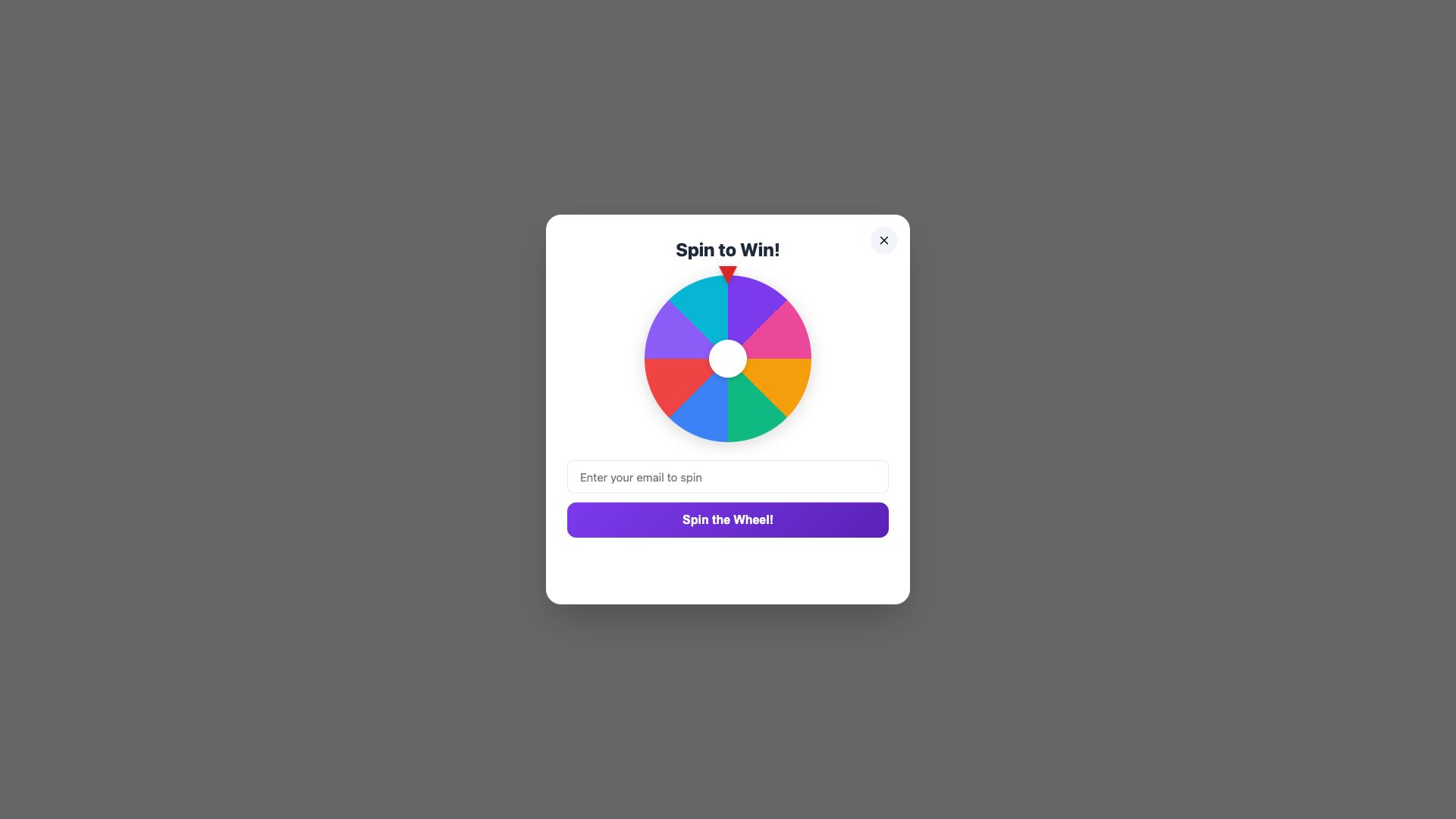
Spin to Win
A gamified wheel where visitors spin to reveal a discount code. Fun, interactive, and highly engaging lead capture.
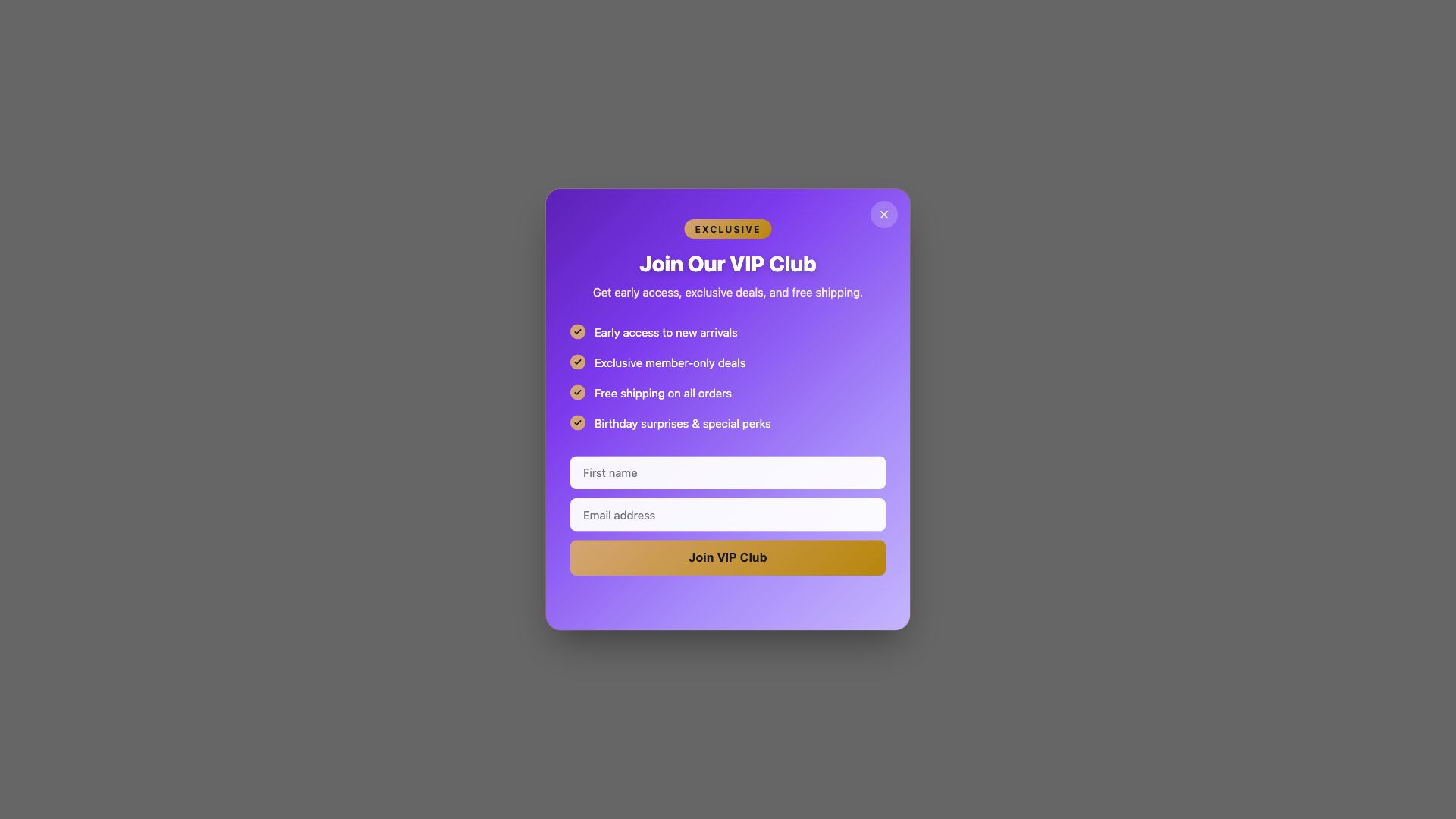
VIP Club Signup
Exclusive club registration with a benefits list. Premium design that makes visitors feel valued for joining.
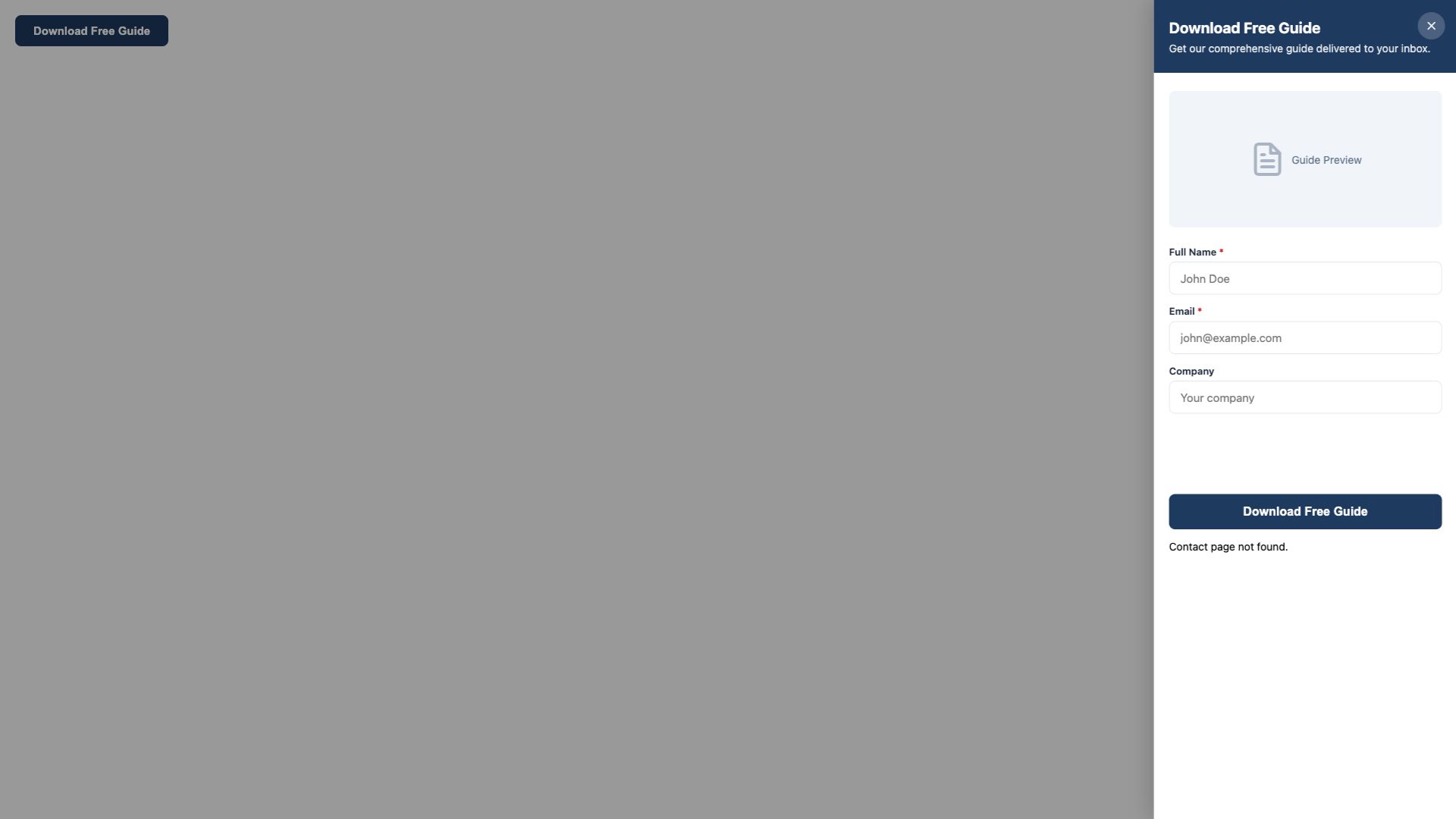
Content Download
Lead magnet popup for ebooks, guides, or catalogs. Slide-in format that captures an email before the download.
Compliance & Information
Meet legal requirements and inform customers with professional notice popups.
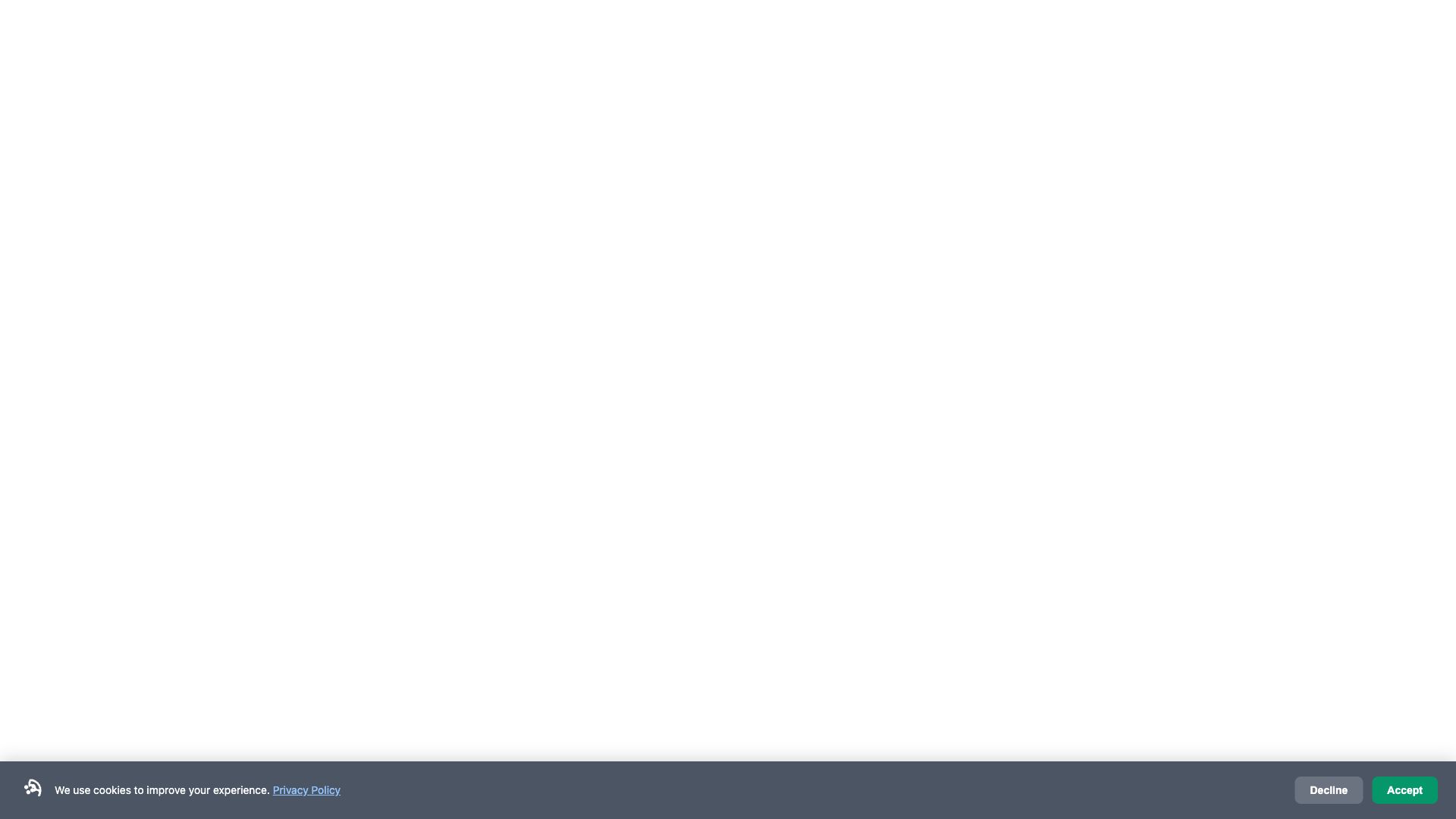
Cookie Consent Banner
GDPR-friendly cookie notice with accept and decline options. Bottom-bar format with a privacy policy link.
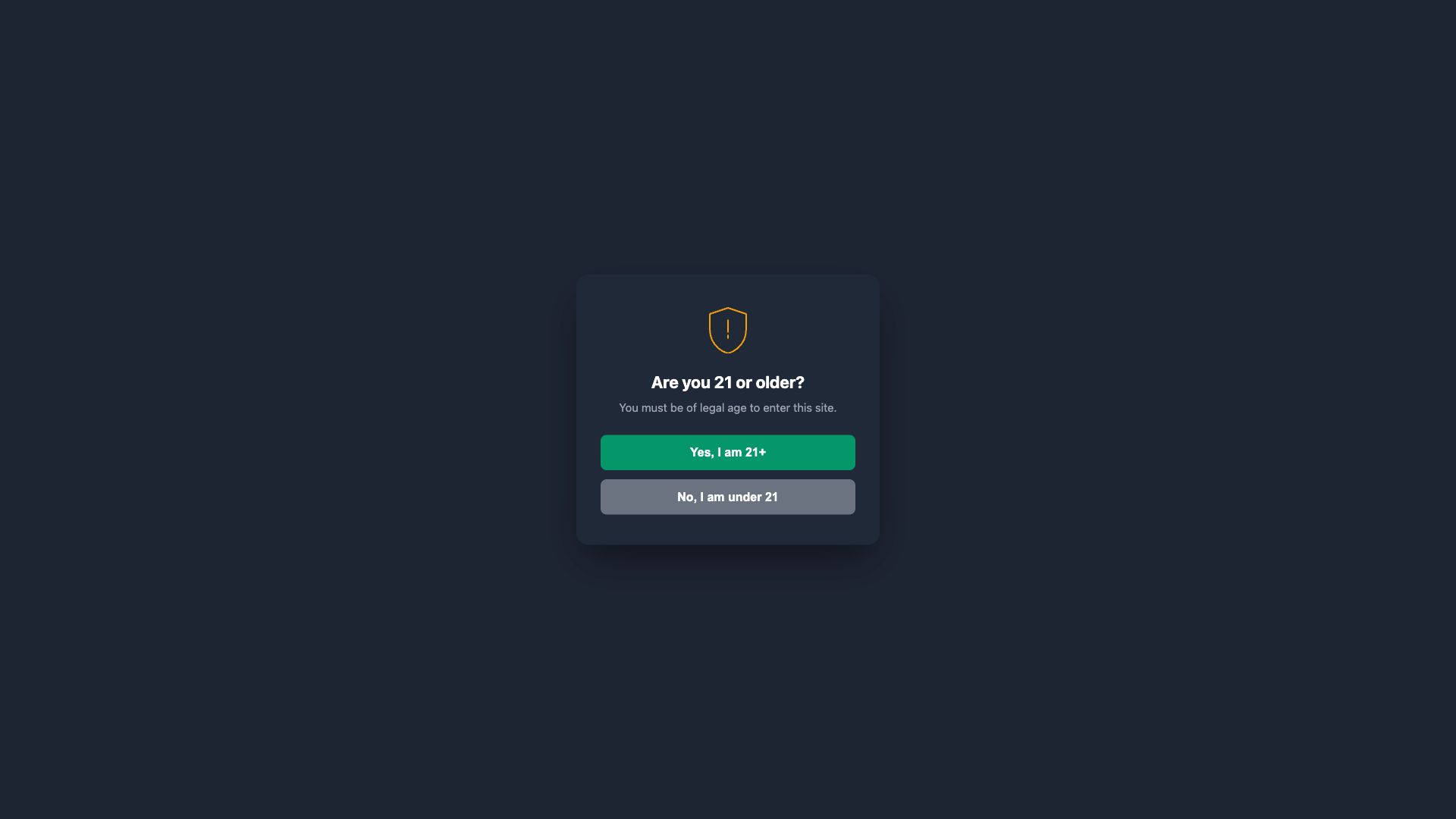
Age Verification Gate
Full-screen age gate for restricted products such as alcohol or tobacco. Blocks page access until the visitor confirms.

Announcement Banner
Top bar for store-wide announcements — maintenance notices, policy updates, shipping delays, or news.
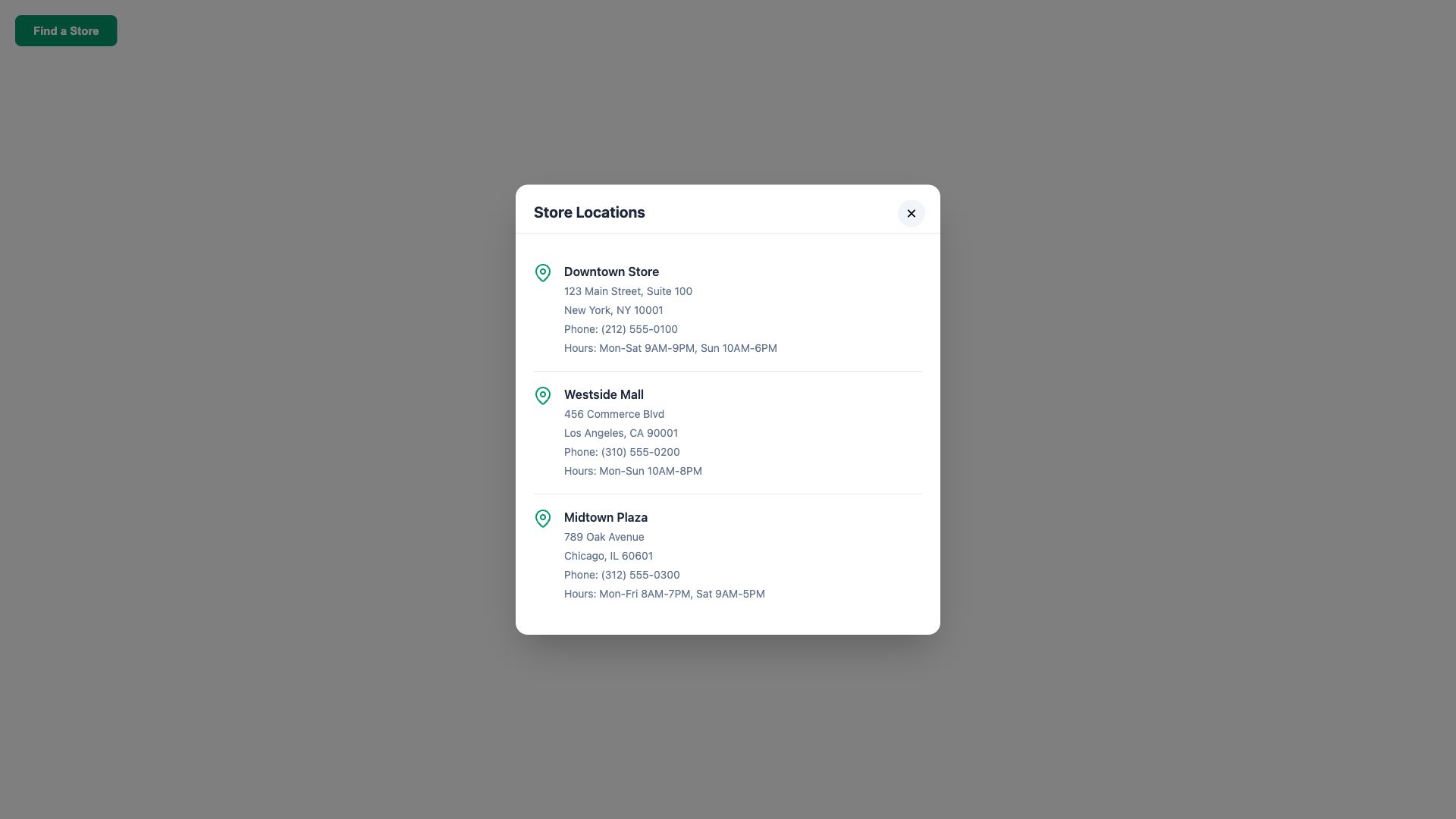
Store Locator
Location selector with store addresses, hours, and directions. Helps customers find nearby stores.
Social & Engagement
Build community and drive engagement through social interaction popups.

Social Follow Prompt
Slide-in popup with social media icons that encourages new followers. Supports Instagram, Facebook, Twitter, and TikTok.
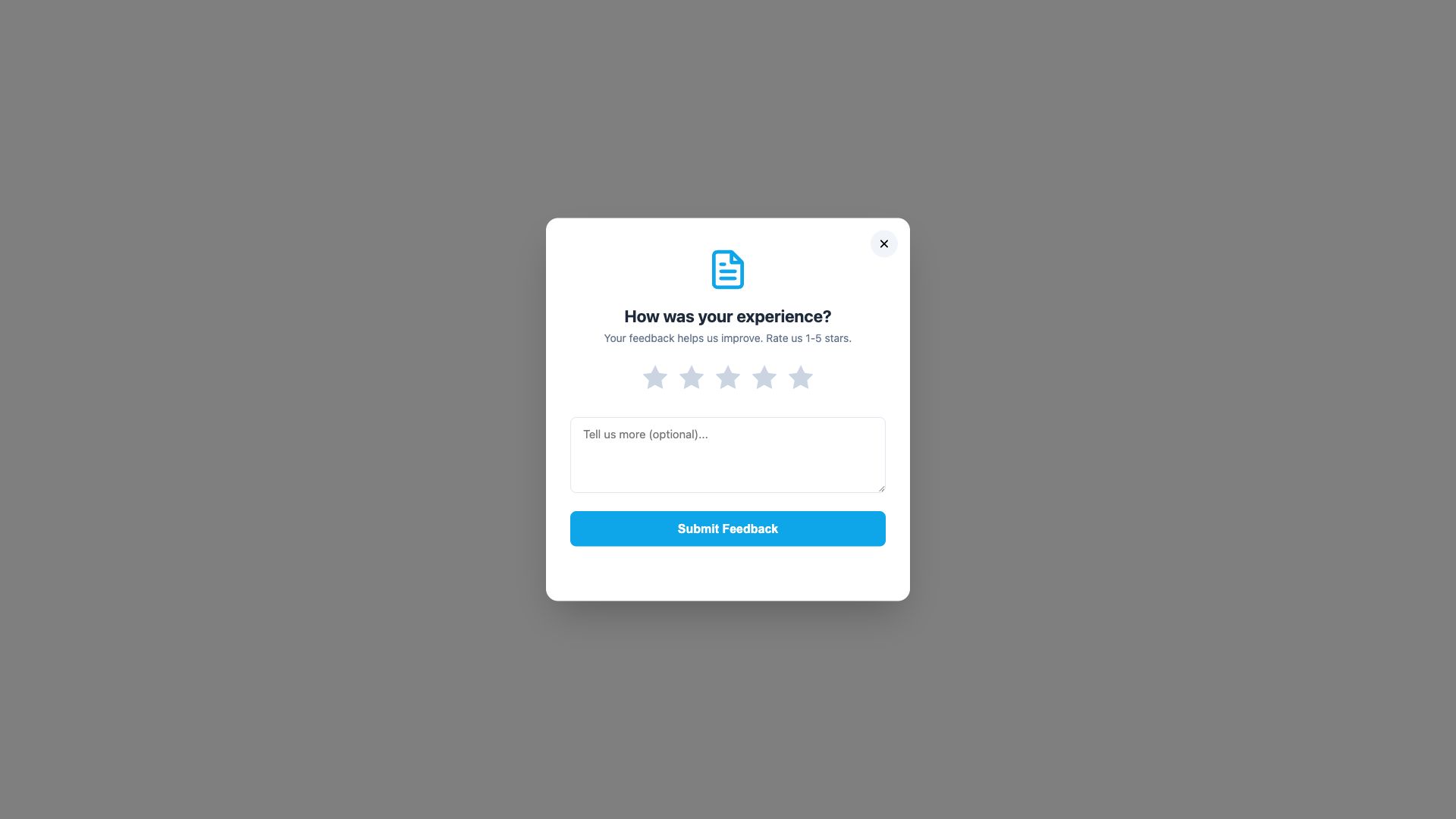
Customer Survey
Satisfaction survey with a rating scale and feedback form. Collects useful insights from your customers.
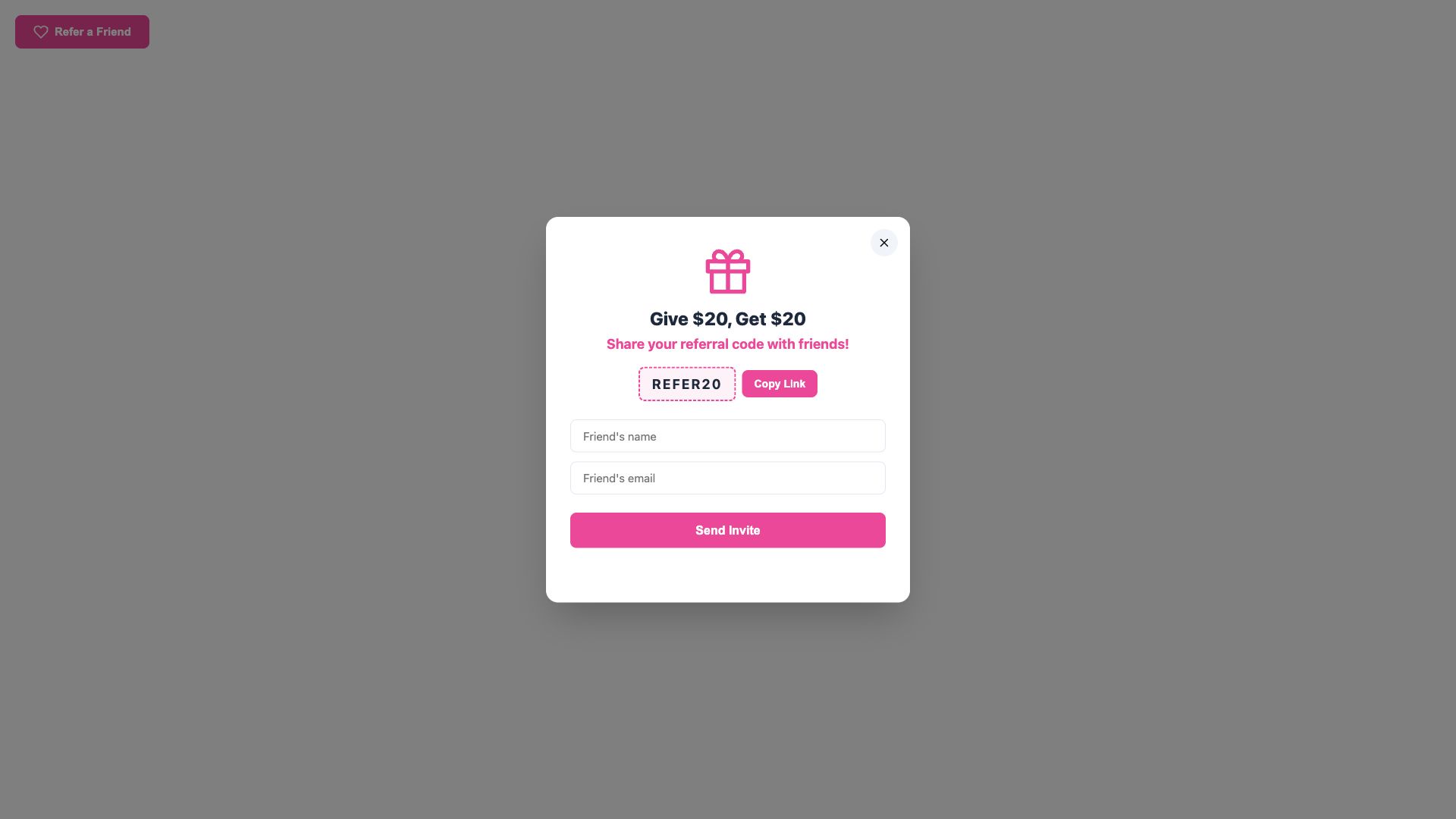
Referral Program
Invite-a-friend popup with a shareable link and email sharing. A reward-based way to grow your audience.
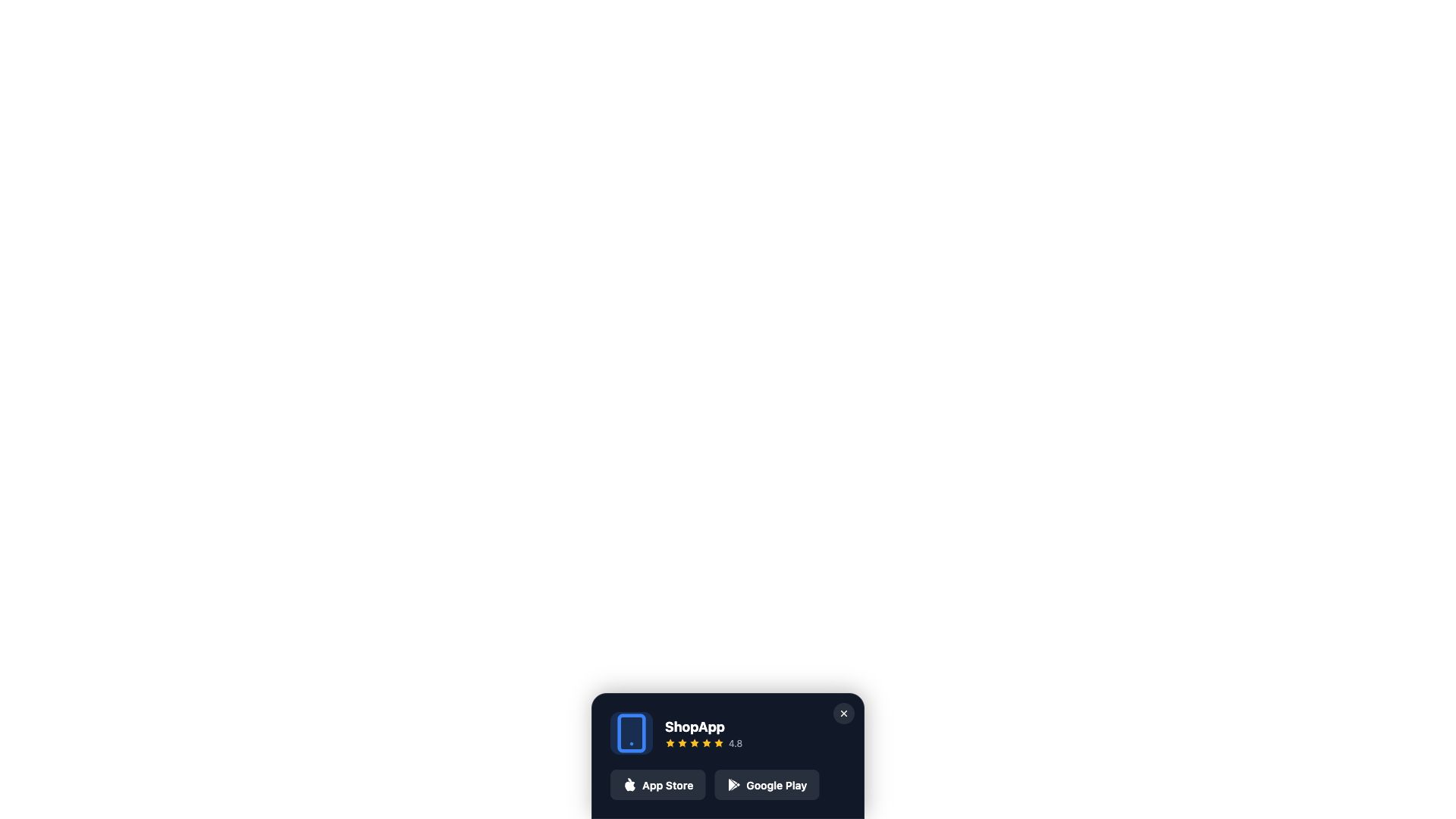
App Download Prompt
Mobile app promotion slide-in with App Store and Google Play badges. Aimed at mobile visitors.
eCommerce-Specific
Purpose-built popups for common eCommerce scenarios.

Cart Reminder
Appears as a visitor is about to leave, reminding them of items still in their cart. Helps reduce abandoned checkouts.
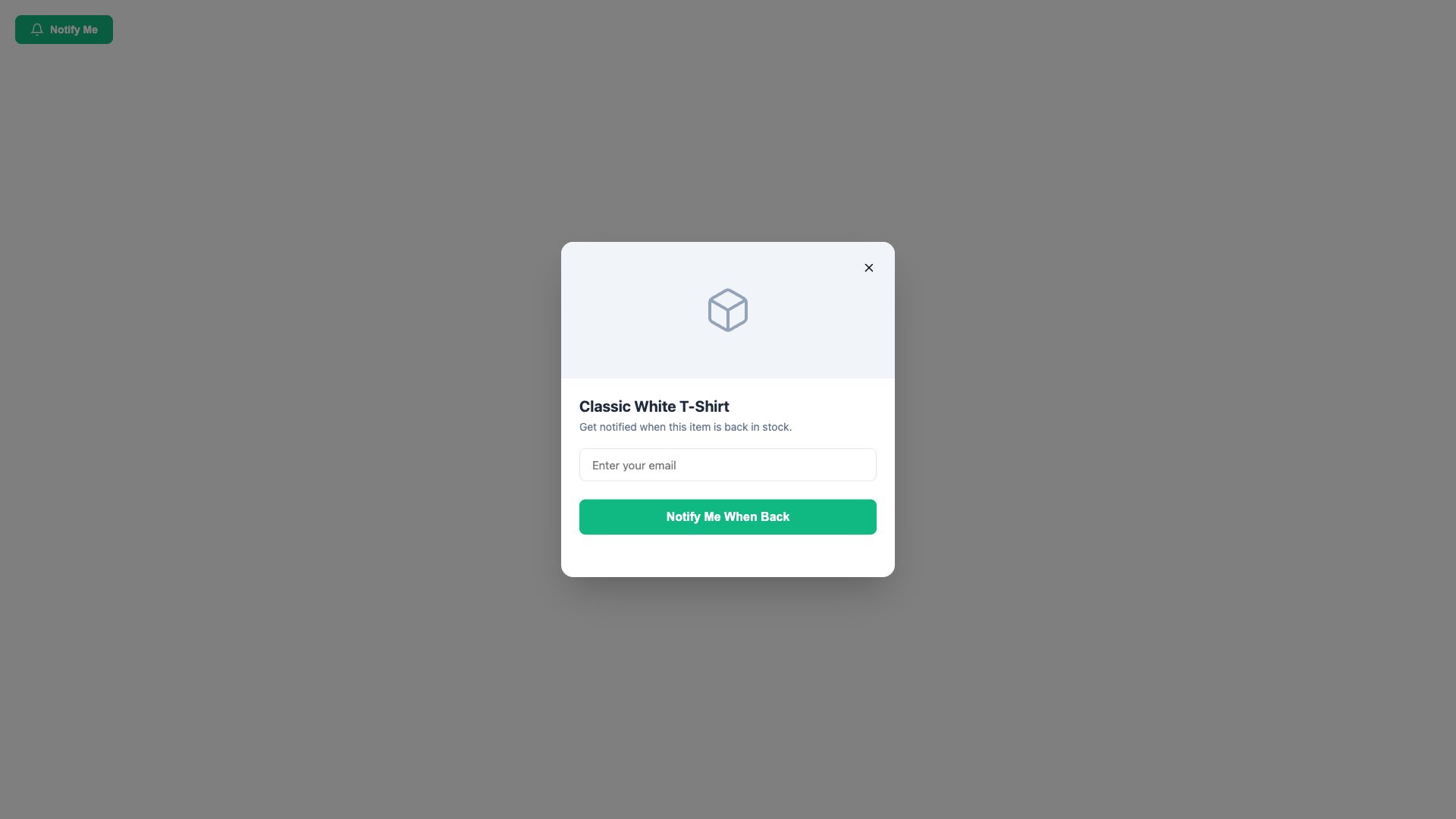
Back in Stock Alert
Email notification signup for out-of-stock products. Captures demand and notifies customers when items return.
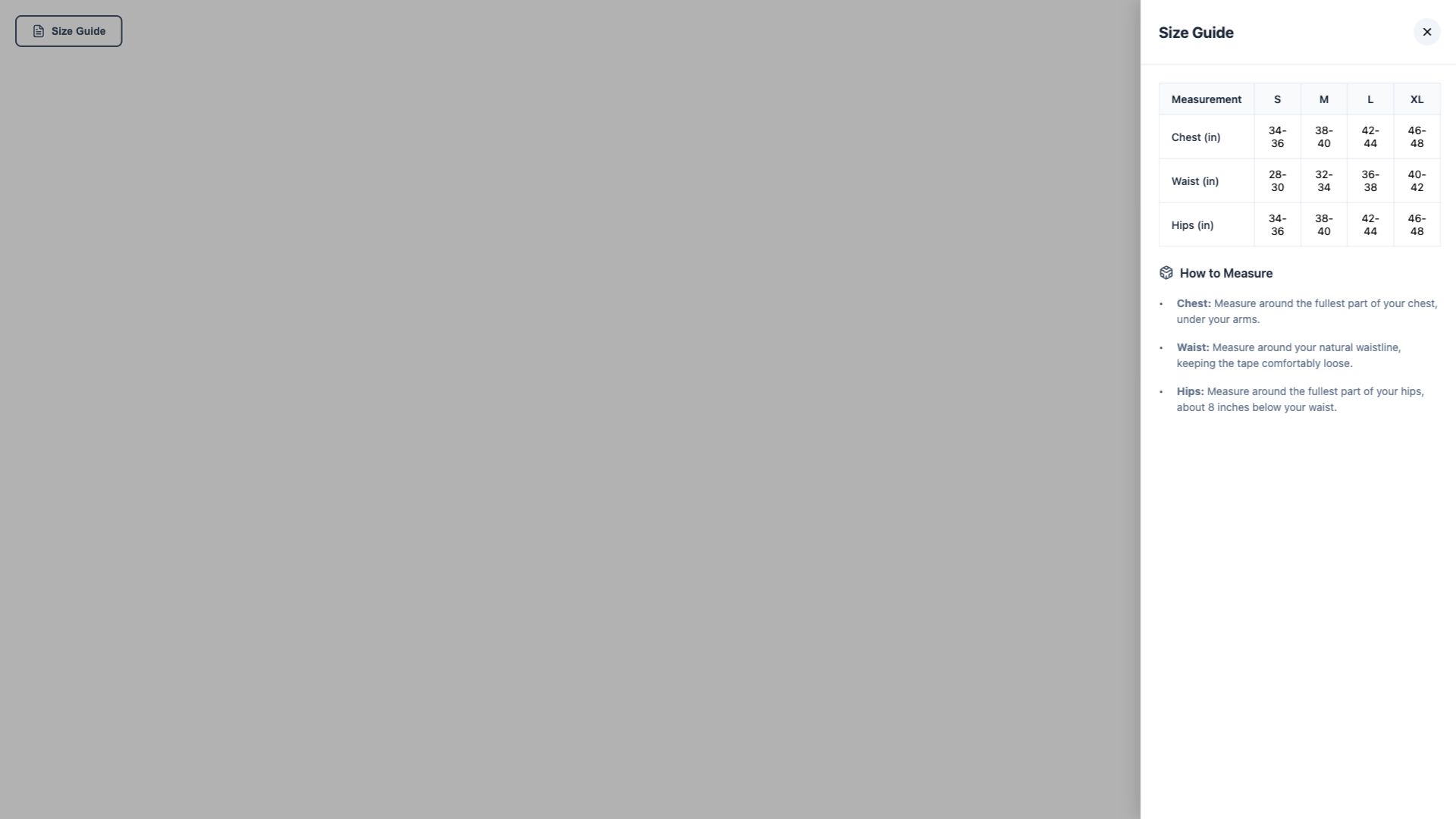
Size Guide
Product size chart with measurement tables. Reduces returns by helping customers choose the right size.
Customizing a Template
After you apply a template, use the AI assistant to make it your own. Just describe what you want in plain English. For example:
- "Change the background color to #1a1a2e."
- "Replace the placeholder text with our actual shipping policy."
- "Update the discount code to SUMMER25."
- "Show the popup after 10 seconds instead of 5."
- "Add our logo to the popup header."
Tip
A template is just a starting point. The assistant can change anything — colors, fonts, layout, text, images, and timing. Describe what you want and it updates the template for you.
Popup Timing
Popup templates appear in one of three ways, and you can ask the assistant to switch between them after applying a template.
| Timing | How it works | Best for |
|---|---|---|
| After a delay | The popup appears a few seconds after the visitor arrives. | Welcome offers, announcements |
| On exit | The popup appears when the visitor moves to leave the page. | Last-chance offers, cart reminders |
| On click | The popup appears when a specific button or link is clicked. | Size guides, store locators |
Every popup also remembers when a visitor has closed it, so it won't keep popping up during their visit.